# Intro to Calk AI

## Welcome to Calk AI! 🚀

Where does Calk AI comes from and why we decided to build this software for businesses.

Calk AI is your AI workspace — designed to build smart agents trained on your own knowledge, documents, and workflows.

It’s not another chatbot or automation tool. It’s a foundation for creating intelligent assistants that actually understand your business.

You bring the content (Google Drive, PDFs, links, notes), and Calk AI turns it into a context-aware AI agent that helps you write, think, decide, and get things done faster.

### Why We Built Calk AI <a href="#h_d88fe086b6" id="h_d88fe086b6"></a>

AI is everywhere — but its impact on real business is still limited.\
You get cool outputs, but no real return. And it only gets worse when every model (GPT-4, Claude, Mistral, Gemini…) lives in a separate tool, behind different accounts.

We built Calk AI because we were tired of that mess.

{% embed url="<https://youtu.be/VlCSUiaeCIA>" %}

***

We wanted:

* A tool where all top models live under one roof — no extra accounts
* A system to give those models context by connecting them to our internal knowledge and tools
* A way to turn AI into ROI — something that helps teams actually work better

So instead of asking random questions to a generic model, you build agents that know your business, your docs, your goals — and act like teammates.

### What You Can Do With Calk AI <a href="#h_a5dfc9be51" id="h_a5dfc9be51"></a>

* Train agents on your own content (files, links, notes, FAQs…)
* Chat across models to compare results and dig deeper
* Build agents to handle multi-step workflows
* Adapt agents to different specific roles — sales, support, research, product…
* Stay in control — everything is private, searchable, and transparent

Calk AI is flexible by design. It adapts to how *you* work — not the other way around.

<figure><img src="https://2442470273-files.gitbook.io/~/files/v0/b/gitbook-x-prod.appspot.com/o/spaces%2FBGWv9tHN4FLRiQu7ou5P%2Fuploads%2FuJtPDbAptpLmkS6WXfsv%2Ftag-calk.png?alt=media&amp;token=60956b42-c651-4de8-b1c5-8aee4fc7f2c8" alt="" width="348"><figcaption></figcaption></figure>

***

### Why the Name “Calk AI”? <a href="#h_8abbf0b9f3" id="h_8abbf0b9f3"></a>

Calk AI comes from the French word *“calque”* — which means tracing paper.

Just like architects layer information to design something precise, Calk AI lets you layer your company’s content and context on top of powerful AI models.

\
So your agents aren’t just smart — they’re aligned, fine-tuned, and ready to act.

It’s not just about speed. It’s about building with intention.

👉 Next up: [How It Works →](https://chatgpt.com/c/684c20ed-9104-800a-9f7a-30f7908b021c#)

***

### 🧩 How Does Calk Actually Work?

Calk follows a simple logic:

**Connect** your tools →\
**Import** your knowledge →\
**Link** that knowledge to a smart agent →\
**Ask** your agent anything, and it responds with context.

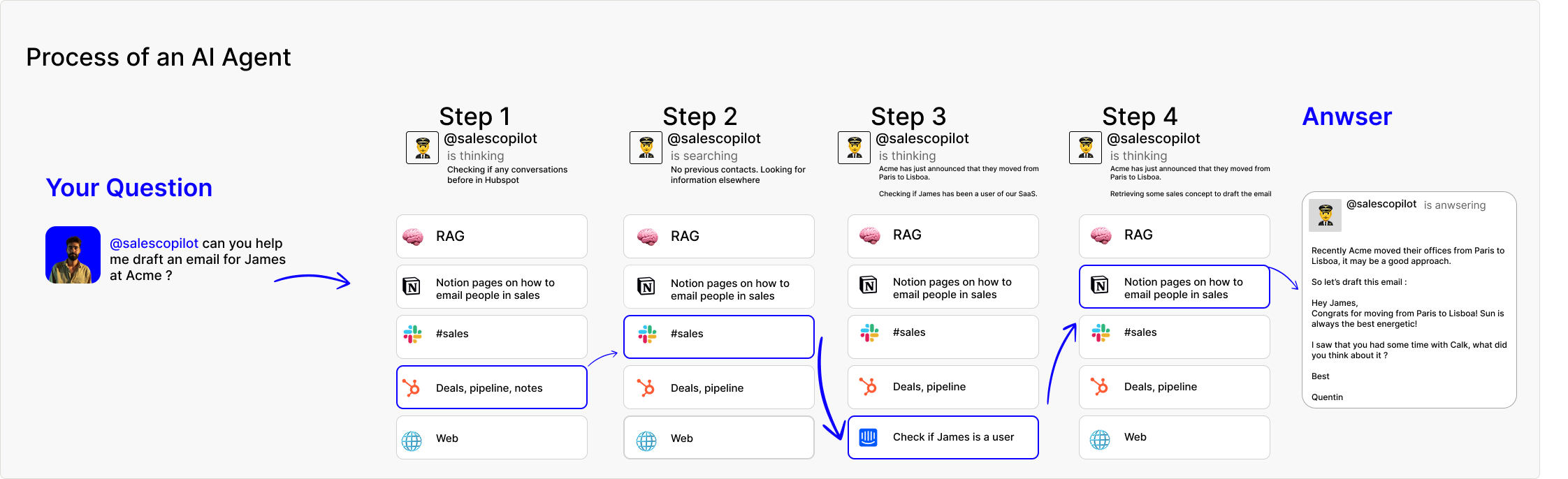
Behind the scenes, Calk uses **RAG (Retrieval-Augmented Generation)**:

> It pulls the most relevant content from your sources and feeds it into the AI model live — so it always has your team’s latest info.

<figure><img src="https://2442470273-files.gitbook.io/~/files/v0/b/gitbook-x-prod.appspot.com/o/spaces%2FBGWv9tHN4FLRiQu7ou5P%2Fuploads%2FbtkzjKkAOM4kCf0DCFmb%2Flogic-calk.png?alt=media&amp;token=8a4142f3-53d0-4b23-b160-747e7470f4e0" alt=""><figcaption></figcaption></figure>

#### 🤖 Try Asking a Real Question

Ask your agent things like:

* “What does {{client}} need from us?”
* “How do we onboard new hires?”
* “What’s our refund process?”

You’ll get an answer based on your actual docs, tickets, and tools.

***

#### 🧠 Talk to Top AI Models (and Compare)

Switch between models like:

* GPT-4o (OpenAI) — brainstorming and document analysis
* Claude (Anthropic) — clear writing
* Mistral — fast + flexible
* Deepseek — technical precision
* GPT o4-mini (OpenAI) — deep reasonning
* Gemini 1.5 : good for large files
* Cohere - Really good at retrieving information

🧪 *Tag up to 4 models or agents and compare answers instantly.*\
→ You choose the best brain for the job.

***

#### 🧠 Create Focused, Specialized Agents

Don’t build a “do everything” AI.\
Build small, smart agents like:

* **Support Bot** trained on Intercom + Slack
* **Sales Prep Bot** trained on Hubspot + Notion
* **Onboarding Guide** trained on internal docs

They answer like experts — because they’re trained only on what matters.

🎥 *(Insert agent creation screenshot or Loom)*

***

### 🚀 Next Up: Launching Calk Inside Your Company

In the next section, we’ll cover:

* How to roll out Calk internally
* How to pick the first 1–2 use cases
* How to invite your team
* Where to get inspired (Slack, YouTube, Notion Toolbox)

🎬 Head to **Part 2 – Implementing Calk in Your Company →**

***

#### 🤖 Try Asking a Real Question

Ask your agent things like:

* “What does {{client}} need from us?”
* “How do we onboard new hires?”
* “What’s our refund process?”

You’ll get an answer based on your actual docs, tickets, and tools.

***

#### 🧠 Talk to Top AI Models (and Compare)

Switch between models like:

* GPT-4o (OpenAI) — deep reasoning
* Claude (Anthropic) — clear writing
* Mistral — fast + flexible
* Deepseek — technical precision

🧪 *Tag up to 4 models or agents and compare answers instantly.*\
→ You choose the best brain for the job.

***

#### 🧠 Create Focused, Specialized Agents

Don’t build a “do everything” AI.\
Build small, smart agents like:

* **Support Bot** trained on Intercom + Slack
* **Sales Prep Bot** trained on Hubspot + Notion
* **Onboarding Guide** trained on internal docs

They answer like experts — because they’re trained only on what matters.

🎥 *(Insert agent creation screenshot or Loom)*

***

### 🚀 Next Up: Launching Calk Inside Your Company

In the next section, we’ll cover:

* How to roll out Calk internally
* How to pick the first 1–2 use cases
* How to invite your team
* Where to get inspired (Slack, YouTube, Notion Toolbox)

🎬 Head to **Part 2 – Implementing Calk in Your Company →**

***

Calk isn’t just software—it’s the future of how businesses interact with AI. Start building your custom AI solutions today and see the difference it makes for your team.

### Let's get started!

<table data-view="cards"><thead><tr><th></th><th></th><th data-hidden data-card-cover data-type="files"></th><th data-hidden></th><th data-hidden data-card-target data-type="content-ref"></th></tr></thead><tbody><tr><td><strong>Chat with the AI Models</strong></td><td><a href="broken://pages/CyH2xJQs9yWJ1S8BYNav">Go Here.</a></td><td></td><td></td><td><a href="broken://pages/JjjojIyKxaiBPzzLwvtg">Broken link</a></td></tr><tr><td><strong>Create and Manage Agent</strong></td><td><a href="/agents/whats-calk-agent/create-and-manage-agent">Go Here.</a></td><td></td><td></td><td><a href="broken://pages/CyH2xJQs9yWJ1S8BYNav">Broken link</a></td></tr></tbody></table>


# How to get started with Calk AI ?

### How it works ?

Calk AI is built around a simple idea:

*Connect your data → Build agents → Work smarter with AI.*

Whether you're training a sales assistant or automating internal research, everything in Calk AI follows this flow.

Let’s break it down.

### 1️⃣ Tag Any Model <a href="#h_1029892ef6" id="h_1029892ef6"></a>

Every conversation starts with the right AI model.

With Calk AI, just type `@GPT-4.1`, `@Claude3.7`, `@Mistral3medium`, or any other available model to activate it instantly.

You don’t need separate accounts. All the best models are in one place.

<figure><img src="https://2442470273-files.gitbook.io/~/files/v0/b/gitbook-x-prod.appspot.com/o/spaces%2FBGWv9tHN4FLRiQu7ou5P%2Fuploads%2FuJtPDbAptpLmkS6WXfsv%2Ftag-calk.png?alt=media&amp;token=60956b42-c651-4de8-b1c5-8aee4fc7f2c8" alt=""><figcaption></figcaption></figure>

### 2️⃣ Connect Your Data <a href="#h_a1dec7257a" id="h_a1dec7257a"></a>

AI is useless without context.

That’s why Calk AI lets you plug in your business knowledge — like documents, pages, notes, and links — from tools like Google Drive and Notion.\
Your data becomes the foundation for every agent you build.

Ask your first question just tag @gpt, @claude3.7 and @deepseek and ask them anything you'd like!

<figure><img src="https://2442470273-files.gitbook.io/~/files/v0/b/gitbook-x-prod.appspot.com/o/spaces%2FBGWv9tHN4FLRiQu7ou5P%2Fuploads%2FgVi2gC8tscUHt3NYZxNO%2FGroup%201030004908%20(1).png?alt=media&amp;token=f2abbcc1-8daf-416d-8b6e-5c5e6ddfd967" alt=""><figcaption></figcaption></figure>

***

### 3. Build Your Agents <a href="#h_09fcdf9627" id="h_09fcdf9627"></a>

Once your data is connected, you can:

* Create agents trained on it
* Or pick a ready-made template to skip the prompting

Agents can specialize in anything: sales, support, marketing, research…\
You define what they do — and they’ll answer based on the knowledge you gave them.

`Don't forget to link some data to the agent to maximize results!`

<figure><img src="https://2442470273-files.gitbook.io/~/files/v0/b/gitbook-x-prod.appspot.com/o/spaces%2FBGWv9tHN4FLRiQu7ou5P%2Fuploads%2FkhfUuwXZK6YxZqs2cQQy%2FGroup%201030004691.png?alt=media&amp;token=e51444e2-0640-4d19-a27d-5565f7f3e5b9" alt=""><figcaption></figcaption></figure>

### 4. Use One, Then the Next <a href="#h_09fcdf9627" id="h_09fcdf9627"></a>

Calk AI is built to work like a chain.

You can use one agent to generate something, then pass the result to another.\
One task at a time, each handled by a focused AI — no confusion, no overload.

That’s how you go from raw data to clean output — step by step, agent by agent.

<figure><img src="https://2442470273-files.gitbook.io/~/files/v0/b/gitbook-x-prod.appspot.com/o/spaces%2FBGWv9tHN4FLRiQu7ou5P%2Fuploads%2FxI4haNDiGAePpElUvtbg%2FGroup%201030005037.png?alt=media&amp;token=7c3e0a3d-368c-4fc2-991c-df148ce31da6" alt="" width="563"><figcaption></figcaption></figure>

***

Calk isn’t just software—it’s the future of how businesses interact with AI. Start building your custom AI solutions today and see the difference it makes for your team.


# Why connecting data to AI is crucial ?

### Why Connecting Your Data to AI Is Crucial

At Calk AI, we believe AI is only as powerful as the context it understands. That’s why connecting your internal data to your AI agents isn’t optional—it’s essential.

#### From Generic Answers to Precise Insights

Out-of-the-box AI can generate answers, but without access to your company’s unique documents, tools, and knowledge bases, it operates blindly. By connecting Calk AI to your data sources—like Notion, Google Drive, CRMs, wikis, or internal PDFs—you enable it to generate content that’s accurate, personalized, and aligned with your business reality.

Whether it’s:

* Drafting sales emails based on past customer interactions,
* Writing blog posts tailored to your product positioning,
* Generating internal reports using your real-time metrics,

Calk AI becomes *your* AI—grounded in *your* knowledge.

#### Break Internal Silos

Most companies store knowledge across multiple tools and teams. Marketing doesn’t see what sales knows. Operations miss updates from product. With Calk AI, you connect all these silos in one place. Your agent can access documents, emails, CRM notes, and more—breaking barriers between departments.

Instead of pinging five colleagues, anyone in your company can just ask:

> “What’s our latest onboarding process?”\
> “Summarize Q2 sales performance by region.”\
> “Draft an answer to this client based on their contract terms.”

No more hunting through folders or chasing replies—just instant answers, from an AI that *knows your company.*

#### Global Use Cases Already in Motion

Companies around the world are already using connected AI for:

* **Customer Support**: Agents trained on internal help docs to respond instantly to user questions.
* **HR & Ops**: AI drafting onboarding emails and HR policies based on internal templates.
* **Marketing**: Generating product-focused content using proprietary tone, language, and positioning.
* **Sales**: Auto-generating tailored pitches based on CRM data and customer history.

#### One AI, Powered by All Your Knowledge

Calk AI turns scattered data into unified intelligence. Whether you’re a founder, support rep, or team lead—*you can ask anything*, and get answers grounded in your reality.


# How to Launch Calk AI Internally

####

{% stepper %}
{% step %}

#### **Find Your First Use Case (Keep It Small)**

The best AI use cases are:

* Repetitive
* Time-consuming
* Based on internal knowledge

👀 Start here:

* **New hire onboarding**
* **Answering common product questions**
* **Internal help desk (“Where’s the doc for X?”)**
* **Sales enablement bot (CRM + battlecards)**

📎 Bonus: Check our Use case page ⇒ [Here](/use-case) 🎸
{% endstep %}

{% step %}

#### **Choose the Right Sources to Connect**

Don’t overdo it at first — start with 1 or 2 tools like:

✅ Notion → for wikis, SOPs, meeting notes\
✅ Slack → for tribal knowledge in channels\
✅ Hubspot or Intercom → for sales/support agents\
✅ Google Drive → for project docs or specs

🎯 Pro tip: The more focused the data, the better the answers.

{% endstep %}

{% step %}

#### **Create Your First Agent (in Minutes)**

You’ll:

* Give it a name (e.g. “SupportBot”)
* Choose a model (start with Claude or GPT-4o)
* Add instructions (e.g. “You help answer product questions using our docs.”)
* Link 1–2 sources of content

That’s it. Ask your first question and test it live 🎉
{% endstep %}

{% step %}

#### **Test Internally Before You Invite Everyone**

Start solo or with 1–2 teammates. Try these:

* “What’s our onboarding checklist?”
* “How do we handle refunds?”
* “What did we last say to client X?”

Adjust your sources or instructions based on what it says.
{% endstep %}

{% step %}

#### **Invite Your Team + Track Use**

Once the first agent works, invite others:

* Support team → connect Intercom
* Sales → connect CRM
* Ops → connect wikis or SOPs

Calk will feel like a second brain, not a project.
{% endstep %}
{% endstepper %}

### 💬 Where to Learn, Ask & Share

#### 🔗 Join our Slack community

Ask us anything, share your agents, or see what others are building.

#### 📺 Watch our YouTube tutorials

Get inspired by real-world use cases and tips from the team. [Here](https://www.youtube.com/results?search_query=Calk+ai)

#### 🧰 Access our Notion toolbox

Copy-paste-ready prompts, agent templates, and best practices. [Here](https://calk-ai.notion.site/how-to-prompt-101?pvs=4)

***

### ✅ TL;DR

1. Start with **1 use case per business unit**
2. Connect **only the tools that matter**
3. Create a **focused agent**
4. Test it, refine it, **share it**
5. Get your team involved

➡ find our use cases [here](/use-case) 🎸

***

🎬 Ready for **Part 3**? We’ll go deeper into building better agents, customizing behavior, and keeping knowledge synced effortlessly.


# Use Case

Copy, tweak, and ship agents that help.

Calk is designed to fit seamlessly into your business, regardless of your industry or team size. From simplifying knowledge management to automating sales workflows, our platform is built to empower you with the **best AI-driven solutions**.

#### **Need Help Choosing a Use Case?**

Meet the @**Calk Agent**, your personal AI assistant. It’s here to help you identify the best use cases for your specific needs. Just describe your goal, and the Calk Agent will recommend use cases tailored to your business.

<div align="left"><figure><img src="https://2442470273-files.gitbook.io/~/files/v0/b/gitbook-x-prod.appspot.com/o/spaces%2FBGWv9tHN4FLRiQu7ou5P%2Fuploads%2FLPdDFgq0InB7C11YN5uK%2FScreenshot%202024-12-02%20at%209.54.58%E2%80%AFPM.png?alt=media&amp;token=73027fb9-fcee-4e52-aba8-b926b6e67633" alt="" width="375"><figcaption></figcaption></figure></div>

<div align="right"><figure><img src="https://2442470273-files.gitbook.io/~/files/v0/b/gitbook-x-prod.appspot.com/o/spaces%2FBGWv9tHN4FLRiQu7ou5P%2Fuploads%2Fq2qLDkNNoOeL0Y2c3BIB%2FScreenshot%202024-12-02%20at%209.55.24%E2%80%AFPM.png?alt=media&amp;token=373f381b-977c-4421-9e9f-626150dc6223" alt="" width="375"><figcaption></figcaption></figure></div>

***

### **Explore Use Cases**

Calk’s versatility makes it perfect for teams across different business functions. Click on any category to dive deeper! ⬅️

***

### **What’s Next?**

1. [Create Your First Agent](https://chatgpt.com/c/674e138e-f624-800a-9857-40f54883c98e#): Let’s get started with a step-by-step guide.
2. [Talk to the Calk Agent](https://chatgpt.com/c/674e138e-f624-800a-9857-40f54883c98e#): Get personalized recommendations for your team.
3. [Discover Use Case Templates](https://chatgpt.com/c/674e138e-f624-800a-9857-40f54883c98e#): Jumpstart your setup with pre-built templates.

***

This structure introduces the **Calk Agent** as a key helper while neatly organizing the use cases into categories. Each section includes clear links for deeper exploration. Let me know if you'd like me to build out a detailed page for one specific use case category!


# Personal Productivity

**Introduction**

Boosting personal productivity is essential for professionals striving to make the most of their time. With Calk, you can create agents that streamline your daily tasks, deliver insights, and handle repetitive work so you can focus on what matters most. Whether you're managing emails, summarizing notes, or brainstorming ideas, Calk is here to help.

**Use Cases**

Here’s how Calk can enhance your personal productivity:

| **Use Case**              | **Mission**                                                                                              |
| ------------------------- | -------------------------------------------------------------------------------------------------------- |
| Summarization of document | Summarize any document in the way you like.                                                              |
| Meeting Recap             | Summarize key points from meetings to have a clear view and avoind forgetting anything                   |
| Daily Slack Diggest       | Get an agent to compile a daily summary of critical updates, news, and tasks from Slack.                 |
| Quick Brainstorming       | Use agents to generate creative ideas or solve problems faster.                                          |
| Cross content adapter     | Save time with assistant that adapt any content made for a specific platform to turn it for another one. |

## Summarization of document

use the Tldr (too long; didn't read) assistant to summarize any document or pictures that you want to extract key points.

<figure><img src="https://2442470273-files.gitbook.io/~/files/v0/b/gitbook-x-prod.appspot.com/o/spaces%2FBGWv9tHN4FLRiQu7ou5P%2Fuploads%2FkaFJpBMPirnm7h0Jxb4W%2Fscreencapture-app-calk-ai-home-chat-67842cc235673238e8c9880e-2025-01-13-13_49_21.png?alt=media&amp;token=4a7dfa05-6e5a-42ff-9f3e-fd3232f60d09" alt=""><figcaption></figcaption></figure>

## Meeting Recap

Use this assistant to have a structured summary of your meetings.

<figure><img src="https://2442470273-files.gitbook.io/~/files/v0/b/gitbook-x-prod.appspot.com/o/spaces%2FBGWv9tHN4FLRiQu7ou5P%2Fuploads%2FLJhtdZHNu6tQa960dorE%2Fscreencapture-app-calk-ai-home-agents-675aa3d063cdb4fd8769185e-2025-01-13-13_58_24.png?alt=media&amp;token=5854c8fe-7740-4bef-bfcd-ac0bc49bf36e" alt=""><figcaption></figcaption></figure>

## Slack diggest

Too much messages in your Slack? We have your back with this integration to summarize any channel.

> ⚠️ Does not work with DM yet.&#x20;

<figure><img src="https://2442470273-files.gitbook.io/~/files/v0/b/gitbook-x-prod.appspot.com/o/spaces%2FBGWv9tHN4FLRiQu7ou5P%2Fuploads%2Fk2B1a70I9rmhjSwhh9CH%2Fslack.png?alt=media&amp;token=1178b79f-d31c-4a1e-a55b-667fd96948b0" alt=""><figcaption></figcaption></figure>

## Quick Brainstorming

Explore any ideas and ping pong with this assistant to explore any related ideas!&#x20;

<figure><img src="https://2442470273-files.gitbook.io/~/files/v0/b/gitbook-x-prod.appspot.com/o/spaces%2FBGWv9tHN4FLRiQu7ou5P%2Fuploads%2FgjVQltsnB7WQvoD6JDK1%2Fscreencapture-dev-app-calk-ai-home-2025-01-13-14_14_23.png?alt=media&amp;token=402db29c-ecaf-4ebd-8f60-2a4ec5fe2631" alt=""><figcaption></figcaption></figure>

## Cross-Content Adapter

Adapt any content made for a platform for another one.

<figure><img src="https://2442470273-files.gitbook.io/~/files/v0/b/gitbook-x-prod.appspot.com/o/spaces%2FBGWv9tHN4FLRiQu7ou5P%2Fuploads%2FjL6dAtLfr6AlwFqhrXfk%2Fscreencapture-app-calk-ai-home-2025-01-13-14_17_59.png?alt=media&amp;token=0e1efa3b-769e-4b19-8c49-b8ef9a56e6f7" alt=""><figcaption></figcaption></figure>


# Sales

Supercharge your sales process with Calk agents tailored to streamline every stage of the sales cycle. From automating lead qualification to generating actionable customer insights, Calk helps you close deals faster and with greater precision.

***

**Use Cases**

Here’s how Calk can revolutionize your sales workflows:

| **Use Case**              | **Mission**                                                                                                                                         |
| ------------------------- | --------------------------------------------------------------------------------------------------------------------------------------------------- |
| Sales Wingman             | Instantly reply to your sales about any objections your clients might have.                                                                         |
| Follow-Up Recommendations | Summarize meeting notes and suggest tailored follow-up actions to move deals forward.                                                               |
| Personalized Outreach     | Use assistant to draft customer-specific emails or proposals that resonate with their unique needs by giving the assistant it's website to analyze. |
| Competitor Analysis       | Quickly analyze competitors’ offerings to identify gaps and refine your sales strategy.                                                             |

## 1) Sales Wingman&#x20;

It helps sales representatives effectively address client concerns and enhance their sales strategies by providing clear, concise, and insightful responses based on extensive experience and knowledge.

<figure><img src="https://2442470273-files.gitbook.io/~/files/v0/b/gitbook-x-prod.appspot.com/o/spaces%2FBGWv9tHN4FLRiQu7ou5P%2Fuploads%2FX31iE0I6yea11F2ohIxY%2FScreenshot%202025-01-13%20at%201.14.01%E2%80%AFPM.png?alt=media&amp;token=00f26fc9-ed0d-49db-86f7-9b5a3ea19a92" alt=""><figcaption></figcaption></figure>

## 2) Follow up Recommandations

As FollowUp Guru, its primary role is to assist in crafting effective follow-up communications after meetings or outreach activities.

<figure><img src="https://2442470273-files.gitbook.io/~/files/v0/b/gitbook-x-prod.appspot.com/o/spaces%2FBGWv9tHN4FLRiQu7ou5P%2Fuploads%2Fzw6QXPCWo4ACLiUAbk0R%2Fscreencapture-app-calk-ai-home-2025-01-13-13_21_56.png?alt=media&amp;token=b90a5333-fa01-450b-8ed0-7b69dc888069" alt=""><figcaption></figcaption></figure>

## 3) Personalized outreach

Analyze the website of your target and have the assistants draft you a personalized email to have the best chances to talk to this prospect!&#x20;

<figure><img src="https://2442470273-files.gitbook.io/~/files/v0/b/gitbook-x-prod.appspot.com/o/spaces%2FBGWv9tHN4FLRiQu7ou5P%2Fuploads%2FXr6miLfg01jVIVKOYmak%2FScreenshot%202025-01-13%20at%201.29.10%E2%80%AFPM.png?alt=media&amp;token=5609ee7c-3848-42ae-bab8-323d81baf06f" alt=""><figcaption></figcaption></figure>

## 4) Competitors Analysis

Track your competitors website and have an asssitant tells you what's new or what are their strategies. Mix it with an Strategist Assistant to imorove your product!

<figure><img src="https://2442470273-files.gitbook.io/~/files/v0/b/gitbook-x-prod.appspot.com/o/spaces%2FBGWv9tHN4FLRiQu7ou5P%2Fuploads%2FbRZeFAvxY41JOGKW778b%2Fscreencapture-app-calk-ai-home-2025-01-13-13_31_16.png?alt=media&amp;token=9ab11971-2cdc-40fa-8224-7d27359c92f5" alt=""><figcaption></figcaption></figure>


# Knowledge Management

**Introduction**\
Efficient knowledge management is crucial for any organization. With Calk, you can create AI agents that integrate with your knowledge base to deliver insights, summaries, and instant answers. These agents are designed to make information accessible, actionable, and reliable.

**Use Cases**\
Here’s how Calk can transform your knowledge workflows:

| Use Case                       | Mision                                                                                                |
| ------------------------------ | ----------------------------------------------------------------------------------------------------- |
| Internal Information Retrieval | Instantly access or summarize any document in your knowledge base using tailored Calk agents.         |
| Generic Web Search Engine      | Access AI-powered answers by extending searches beyond internal resources to external websites.       |
| Ask a Team                     | Create an assistant to centralize expertise, providing employees with quick answers to their queries. |
| Ask a FAQ                      | Deploy a conversational FAQ agent to make organizational documents more accessible.                   |

## Retrieval of information&#x20;

Let your @Infoseeker assistant find the information about something for you

<figure><img src="https://2442470273-files.gitbook.io/~/files/v0/b/gitbook-x-prod.appspot.com/o/spaces%2FBGWv9tHN4FLRiQu7ou5P%2Fuploads%2FUqSbxYLb9RwL6gaYiD2u%2Fscreencapture-app-calk-ai-home-2025-01-13-14_26_42.png?alt=media&amp;token=34b3521d-8c33-4d18-91d7-059dbd4b7ba2" alt=""><figcaption></figcaption></figure>

## WebSearcher

Have a personal web searcher as an assistant to incorpate it in your AI workflow.

<figure><img src="https://2442470273-files.gitbook.io/~/files/v0/b/gitbook-x-prod.appspot.com/o/spaces%2FBGWv9tHN4FLRiQu7ou5P%2Fuploads%2FyPnEDBQx6eKYchbUvJe3%2FScreenshot%202025-01-13%20at%202.29.27%E2%80%AFPM.png?alt=media&amp;token=9dbdb295-6da6-4d3c-b33c-01fac3854139" alt=""><figcaption></figcaption></figure>

Ask a FAQ

<figure><img src="https://2442470273-files.gitbook.io/~/files/v0/b/gitbook-x-prod.appspot.com/o/spaces%2FBGWv9tHN4FLRiQu7ou5P%2Fuploads%2F9g3FBY9kcvaKd1jI6trZ%2Fscreencapture-app-calk-ai-home-2025-01-13-14_26_42.png?alt=media&amp;token=a457c364-6ea2-439e-82bd-04c9096dc18a" alt=""><figcaption></figcaption></figure>


# Marketing & Content Creation

Great marketing starts with creativity, strategy, and execution. With Calk, you can create agents that help you brainstorm ideas, analyze campaign performance, and generate high-quality content at scale. Whether you’re planning a campaign or writing engaging copy, Calk is your creative partner.

***

**Use Cases**

Here’s how Calk can transform your marketing and content workflows:

| **Use Case**         | **Mission**                                                                                              |
| -------------------- | -------------------------------------------------------------------------------------------------------- |
| Campaign Ideation    | Brainstorm new campaign ideas or strategies with AI-powered agents.                                      |
| Content Creation     | Generate blog posts, social media captions, or ad copy tailored to your audience.                        |
| SEO Optimization     | Get keyword suggestions and optimize your content for search engines effortlessly.                       |
| Performance Analysis | Summarize campaign data and highlight key metrics to refine your strategy.                               |
| Content refiner      | Use agents to refine marketing content.                                                                  |
| Cross Content        | Save time with assistant that adapt any content made for a specific platform to turn it for another one. |

***

## 1) Campaign Ideation

<figure><img src="https://2442470273-files.gitbook.io/~/files/v0/b/gitbook-x-prod.appspot.com/o/spaces%2FBGWv9tHN4FLRiQu7ou5P%2Fuploads%2FA5Tn0IiYoKOZed4SSGVQ%2Fscreencapture-app-calk-ai-home-2025-01-13-15_28_51.png?alt=media&amp;token=6ac7bc69-8a18-4fdc-8b71-fa338e768b87" alt=""><figcaption></figcaption></figure>

## 2) Content Creation

<figure><img src="https://2442470273-files.gitbook.io/~/files/v0/b/gitbook-x-prod.appspot.com/o/spaces%2FBGWv9tHN4FLRiQu7ou5P%2Fuploads%2FAoGFfNGLUsCd1DsKQxUn%2Fscreencapture-app-calk-ai-home-2025-01-13-15_31_55.png?alt=media&amp;token=257714ed-4e1b-4c14-b864-7aa89bf42504" alt=""><figcaption></figcaption></figure>

## 3) Content optimization

If you need more copywritting in your content and adapt it to your ICP :&#x20;

<figure><img src="https://2442470273-files.gitbook.io/~/files/v0/b/gitbook-x-prod.appspot.com/o/spaces%2FBGWv9tHN4FLRiQu7ou5P%2Fuploads%2FFwbHyX83JWpceUDmI0wn%2Fscreencapture-app-calk-ai-home-2025-01-13-15_40_41.png?alt=media&amp;token=ea8c8d8a-6a2e-44b9-b484-633679092a07" alt=""><figcaption></figcaption></figure>

## 4) Cross-Content

Adapt a post from Linkedin to Instagram in a click. Works on every platform.

<figure><img src="https://2442470273-files.gitbook.io/~/files/v0/b/gitbook-x-prod.appspot.com/o/spaces%2FBGWv9tHN4FLRiQu7ou5P%2Fuploads%2FBROS9G9p75tn3JgVDrkA%2Fscreencapture-app-calk-ai-home-2025-01-13-14_17_59.png?alt=media&amp;token=5029ce88-b3ad-4b00-b970-2c796b3cd5e5" alt=""><figcaption></figcaption></figure>


# Recruiting & HRs

Simplify and supercharge your HR and recruiting workflows with Calk agents. From automating resume screening to personalizing onboarding processes, Calk empowers HR teams to focus on strategic initiatives while the AI handles repetitive tasks. Whether you’re hiring, training, or managing employee feedback, Calk agents are your HR assistants.

***

**Use Cases**

Here’s how Calk can optimize your HR and recruiting workflows:

| **Use Case**               | **Mission**                                                                                         |
| -------------------------- | --------------------------------------------------------------------------------------------------- |
| Resume Screening           | Automatically analyze resumes to shortlist the best candidates based on predefined criteria.        |
| Interview notes Sumup      | Summarize candidate interview notes and generate tailored interview report for hiring managers.     |
| Internal Assistance        | Create assistants that guide employees through onboarding materials, forms, and tasks.              |
| Employee Feedback Analysis | Collect, analyze, and summarize employee feedback to identify key trends and areas for improvement. |
| Training with HR quizzes   | Turn your HR policies into quizzes in order to train your employees the fun way                     |

## Resume screening&#x20;

Automatically analyze resumes to shortlist the best candidates based on predefined scope.

<figure><img src="https://2442470273-files.gitbook.io/~/files/v0/b/gitbook-x-prod.appspot.com/o/spaces%2FBGWv9tHN4FLRiQu7ou5P%2Fuploads%2FIIbRieGSBnC6tbdc3Exq%2Fscreencapture-app-calk-ai-home-2025-01-13-15_48_38.png?alt=media&amp;token=3aeae02e-3ab6-4564-86bc-3ef697a86dd7" alt=""><figcaption></figcaption></figure>

## Interview notes Sum up&#x20;

Summarize your interview notes to store them and have a better follow up if needed or to have a better memory of what happened.

<figure><img src="https://2442470273-files.gitbook.io/~/files/v0/b/gitbook-x-prod.appspot.com/o/spaces%2FBGWv9tHN4FLRiQu7ou5P%2Fuploads%2F9GWjrHrx20oO9cAgWJW0%2Fscreencapture-app-calk-ai-home-chat-674ef3b7dd8459d05430e6d3-2025-01-13-16_04_29.png?alt=media&amp;token=a549bc86-76a8-4ea8-9026-60de840b28ac" alt=""><figcaption></figcaption></figure>

## Internal Helper

Assistant that helps employees when they have questions about the company's policies.&#x20;

<figure><img src="https://2442470273-files.gitbook.io/~/files/v0/b/gitbook-x-prod.appspot.com/o/spaces%2FBGWv9tHN4FLRiQu7ou5P%2Fuploads%2FgrdMncWM5H0ctltmrmfZ%2Fscreencapture-app-calk-ai-home-2025-01-13-16_17_26.png?alt=media&amp;token=9dd36df8-17b3-474f-95a5-3dec68036767" alt=""><figcaption></figcaption></figure>

## HR Quizzes

<figure><img src="https://2442470273-files.gitbook.io/~/files/v0/b/gitbook-x-prod.appspot.com/o/spaces%2FBGWv9tHN4FLRiQu7ou5P%2Fuploads%2FWKOBDFHuiM4o3bJYPLTc%2Fscreencapture-app-calk-ai-home-2025-01-13-20_08_16.png?alt=media&amp;token=8c727c04-0fff-4281-84a9-5242f8e1a17c" alt=""><figcaption></figcaption></figure>


# Customer Support

Deliver exceptional customer experiences with AI-powered Calk agents. From handling FAQs to providing personalized responses, Calk streamlines your support processes and ensures your customers get accurate, timely assistance 24/7.

***

**Use Cases**

Here’s how Calk can elevate your customer support:

| **Use Case**             | **Mission**                                                                            |
| ------------------------ | -------------------------------------------------------------------------------------- |
| FAQ Automation           | Create agents to answer frequently asked questions directly from your knowledge base.  |
| Personalized Support     | Deploy agents that understand customer context and provide tailored responses.         |
| Feedback Analysis        | Summarize and analyze customer feedback to uncover actionable insights.                |
| Multi-Channel Assistance | Support customers across email, chat, and social media with a unified agent.           |
| Ticket Prioritization    | Automatically categorize and prioritize support tickets based on urgency or relevance. |


# Engineering

Streamline your engineering workflows with Calk agents designed to assist in coding, debugging, and project management. Whether you’re analyzing code, generating documentation, or planning projects, Calk helps developers save time and focus on building great software.

***

**Use Cases**

Here’s how Calk can enhance your engineering workflows:

| **Use Case**                | **Mission**                                                                           |
| --------------------------- | ------------------------------------------------------------------------------------- |
| Code Debugging              | Use agents to identify bugs in code and suggest potential fixes.                      |
| Technical Documentation     | Generate comprehensive documentation for codebases, APIs, or workflows.               |
| Code Reviews                | Automate code review summaries and highlight areas needing attention.                 |
| Project Planning            | Use agents to break down complex projects into manageable tasks and timelines.        |
| Tool Integration Assistance | Set up agents to integrate with existing tools like GitHub, Jira, or CI/CD pipelines. |

***

**Next Steps**

1. Learn How to Build an Engineering Agent.


# Product & Design

**Introduction**

Innovation thrives at the intersection of creativity and organization. Calk agents are here to streamline your product and design workflows, enabling you to brainstorm ideas, organize feedback, and automate routine tasks. Whether you're refining a roadmap or generating design specs, Calk empowers teams to move faster and stay creative.

***

**Use Cases**

Here’s how Calk can enhance your product and design processes:

| **Use Case**             | **Mission**                                                                           |
| ------------------------ | ------------------------------------------------------------------------------------- |
| Product Roadmapping      | Collaboratively build and refine product roadmaps with AI assistance.                 |
| Feedback Summarization   | Collect and summarize user feedback to identify key trends and areas for improvement. |
| Idea Generation          | Brainstorm product features or design concepts tailored to your goals.                |
| Spec Document Automation | Automatically generate detailed product or design specifications.                     |
| Creative Briefs          | Draft clear and concise creative briefs based on project goals and requirements.      |

***

**Detailed Use Cases**

1. **Product Roadmapping**
   * **Problem**: Building a roadmap that aligns with stakeholder priorities and user needs is time-consuming.
   * **Solution**: Use a Calk Assistant to gather inputs, suggest prioritizations, and visualize timelines for your product roadmap.
   * **Benefit**: Save time, align stakeholders, and ensure your roadmap reflects key goals.
2. **Feedback Summarization**
   * **Problem**: Analyzing customer feedback across multiple channels can be overwhelming.
   * **Solution**: Deploy Assistant to collect, categorize, and summarize feedback, highlighting critical themes and actionable insights.
   * **Benefit**: Improve your product by focusing on the most impactful user feedback.
3. **Idea Generation**
   * **Problem**: Coming up with fresh, innovative ideas for features or designs can feel like a bottleneck.
   * **Solution**: Leverage a Calk Assistant to brainstorm and refine ideas based on your market, audience, and goals.
   * **Benefit**: Unlock creativity and move quickly from ideation to execution.
4. **Spec Document Automation**
   * **Problem**: Writing detailed specifications for products or designs takes valuable time and effort.
   * **Solution**: Calk Assistant can automatically generate clear and detailed spec documents, saving time for your team.
   * **Benefit**: Reduce manual effort while ensuring consistency and completeness in your documentation.
5. **Creative Briefs**
   * **Problem**: Drafting creative briefs that clearly communicate goals can be a challenge.
   * **Solution**: Use Assistant to craft concise and impactful briefs tailored to your project needs.
   * **Benefit**: Set your team up for success with well-defined project objectives.

***


# Data

Harness the power of your data with Calk agents designed to simplify analysis, improve insights, and automate reporting. Whether you’re cleaning datasets, visualizing trends, or generating actionable recommendations, Calk helps you unlock the full potential of your data.

***

**Use Cases**

Here’s how Calk can transform your data workflows:

| **Use Case**                | **Mission**                                                                      |
| --------------------------- | -------------------------------------------------------------------------------- |
| Data Cleaning               | Automate the process of identifying and correcting inconsistencies in datasets.  |
| Trend Analysis              | Summarize patterns and trends in large datasets for better decision-making.      |
| Report Generation           | Create comprehensive and visually engaging reports from raw data.                |
| Data Integration Assistance | Streamline connections between data sources and ensure compatibility.            |
| Predictive Insights         | Use AI-powered agents to forecast trends and provide actionable recommendations. |

***

**Detailed Use Cases**

1. **Data Cleaning**
   * **Problem**: Cleaning large datasets manually is time-intensive and prone to error.
   * **Solution**: Use a Calk Assistant to identify duplicates, missing values, and inconsistencies, automating the cleaning process.
   * **Benefit**: Save time and ensure your data is accurate and ready for analysis.
2. **Trend Analysis**
   * **Problem**: Identifying meaningful trends in complex datasets requires deep expertise and significant effort.
   * **Solution**: Deploy Assistant to analyze data and summarize key trends, highlighting actionable insights.
   * **Benefit**: Make data-driven decisions faster and with greater confidence.
3. **Report Generation**
   * **Problem**: Turning raw data into understandable and visually appealing reports can be tedious.
   * **Solution**: Let Calk Assistant generate detailed reports with charts, summaries, and insights tailored to your needs.
   * **Benefit**: Communicate findings effectively without spending hours formatting data.
4. **Data Integration Assistance**
   * **Problem**: Connecting diverse data sources and ensuring they work together can be challenging.
   * **Solution**: Use Assistant to automate data integration and resolve compatibility issues between systems.
   * **Benefit**: Create a unified data ecosystem effortlessly.
5. **Predictive Insights**
   * **Problem**: Forecasting future trends manually can be inaccurate and time-consuming.
   * **Solution**: Use Calk Assistant to predict trends and suggest data-driven actions.
   * **Benefit**: Stay ahead of the curve with reliable and actionable forecasts.

See both exemples with Airtable integration and Mongo DB :

<figure><img src="https://2442470273-files.gitbook.io/~/files/v0/b/gitbook-x-prod.appspot.com/o/spaces%2FBGWv9tHN4FLRiQu7ou5P%2Fuploads%2F3c5Q4jGTinvewBilx9yD%2Fdata.gif?alt=media&amp;token=7b428e69-42a3-466d-b6d9-aa242163609d" alt=""><figcaption></figcaption></figure>


# FAQ

if you want more help, you can tag with a @ our helper agent to answer all of your questions.

<details>

<summary><strong>What is Calk?</strong> </summary>

Calk is an AI-driven platform that enables users to engage in intelligent conversations with advanced AI models and create customizable agents tailored to specific needs. It facilitates seamless collaboration and enhances productivity by integrating AI capabilities into various workflows.

</details>

<details>

<summary><strong>How do I start a chat with AI models in Calk?</strong> To initiate a chat with AI models in Calk:</summary>

* Navigate to the Home page in your dashboard.
* Choose a model or an agent from the available list.
* Click on the desired model or agent to select it.
* Type your message in the input field and send it to start the conversation.

</details>

<details>

<summary><strong>Can I interact with multiple AI models simultaneously?</strong></summary>

Yes, Calk's Multi-Modal feature allows you to interact with multiple AI models or agents within a single interface. By typing the '@' symbol, you can list and select available models during your chat, enabling you to switch between models or tag multiple models in the same message for comparative responses.

</details>

<details>

<summary>How many messages can I send with Calk AI ? </summary>

**Calk AI provides users with a daily allowance of 100 messages.** This quota is designed to accommodate typical professional usage while ensuring optimal platform performance. Importantly, Calk AI is built for business users, not developers, allowing non-technical professionals to create and deploy AI agents without coding knowledge. For free users, depending on the lenght of  messages it will be maximum 50 per day. We plan to reduce this number.

</details>

<details>

<summary><strong>How do I create a new agent in Calk?</strong></summary>

To create a new agent in Calk:

* Access the Agents page in your dashboard.
* Click on the "Create Agent" button.
* Define the agent's identity by selecting an icon, naming the agent, providing a description, choosing an AI model, setting the agent's mood, and adding relevant tags.
* On the Mission page, write the prompt that guides the agent's behavior and responses.
* On the Knowledge page, add files from your local machine, imported knowledge base, or integrated services like Google Drive.
* After configuring these settings, click the "Create Agent" button to finalize the creation.

</details>

<details>

<summary><strong>How can I edit or delete an existing agent?</strong> </summary>

To edit or delete an existing agent:

* Navigate to the Agents page in your dashboard.
* Click on the three dots located at the top right corner of the agent's card.
* Select "Edit" to modify the agent's settings or "Delete" to remove the agent.
* In edit mode, you can change the agent's icon, name, description, model, prompt, and knowledge base files. After making changes, ensure you save or update the agent accordingly.

</details>

<details>

<summary><strong>What types of files can I import into a chat or agent's knowledge base?</strong></summary>

Calk allows you to import various types of files into a chat or an agent's knowledge base, including documents from your computer, files from your knowledge base, and files from integrated services like Google Drive. However, please note that ***image files are not supported for analysis at this time.***

</details>

<details>

<summary><strong>What types of files can I import into a chat or agent's knowledge base?</strong></summary>

Calk allows you to import various types of files into a chat or an agent's knowledge base, including documents from your local machine, files from your knowledge base, and files from integrated services like Google Drive. However, please note that image files are not supported for analysis at this time.

</details>

<details>

<summary><strong>How does the 'Enhance Prompt' feature work during agent creation?</strong></summary>

If you're unsure how to write a detailed prompt for your agent, you can enter a simple sentence and use the "Enhance Prompt" feature. This feature assists in expanding and refining your input to create a more comprehensive and effective prompt that guides your agent's behavior and responses.

![](https://2442470273-files.gitbook.io/~/files/v0/b/gitbook-x-prod.appspot.com/o/spaces%2FBGWv9tHN4FLRiQu7ou5P%2Fuploads%2Fwr6XxZfsI0ol4n26Yelb%2FPress%20the%20wand%20to%20have%20the%20best%20prompt.png?alt=media\&token=67d2dbb9-0807-4d2c-b2d4-8a6e3baa056a)

</details>

<details>

<summary><strong>Can I integrate Calk with external services like Google Drive?</strong> </summary>

Yes, Calk supports integration with external services such as Google Drive. This allows you to import files directly from your Google Drive into your knowledge base, and then in the agent's knowledge base enhancing the agent's ability to provide accurate and contextually relevant responses.

</details>

<details>

<summary><strong>How do I manage the mood or tone of an agent's responses?</strong></summary>

During the agent creation process, you can set the "Mood of the Agent," which influences how the agent responds to your requests. This setting allows you to customize the agent's tone, ranging from serious to creative, ensuring that the responses align with your preferences and requirements.

</details>

<details>

<summary><strong>Where can I find more detailed guides on using Calk's features?</strong></summary>

For comprehensive guides and documentation on using Calk's features, including chat functionalities, agent creation, and integrations, please visit the [Calk Documentation](https://docs.calk-ai.com/).
</details>

If you have further questions or need additional assistance, feel free to explore the documentation or reach out to our support team.


# Knowledge Hub

Calk's knowledge management system allows you to connect various data sources and import documents to enhance your AI agents' capabilities. The knowledge system is organized into several sections accessible from the sidebar.

### Sources Overview

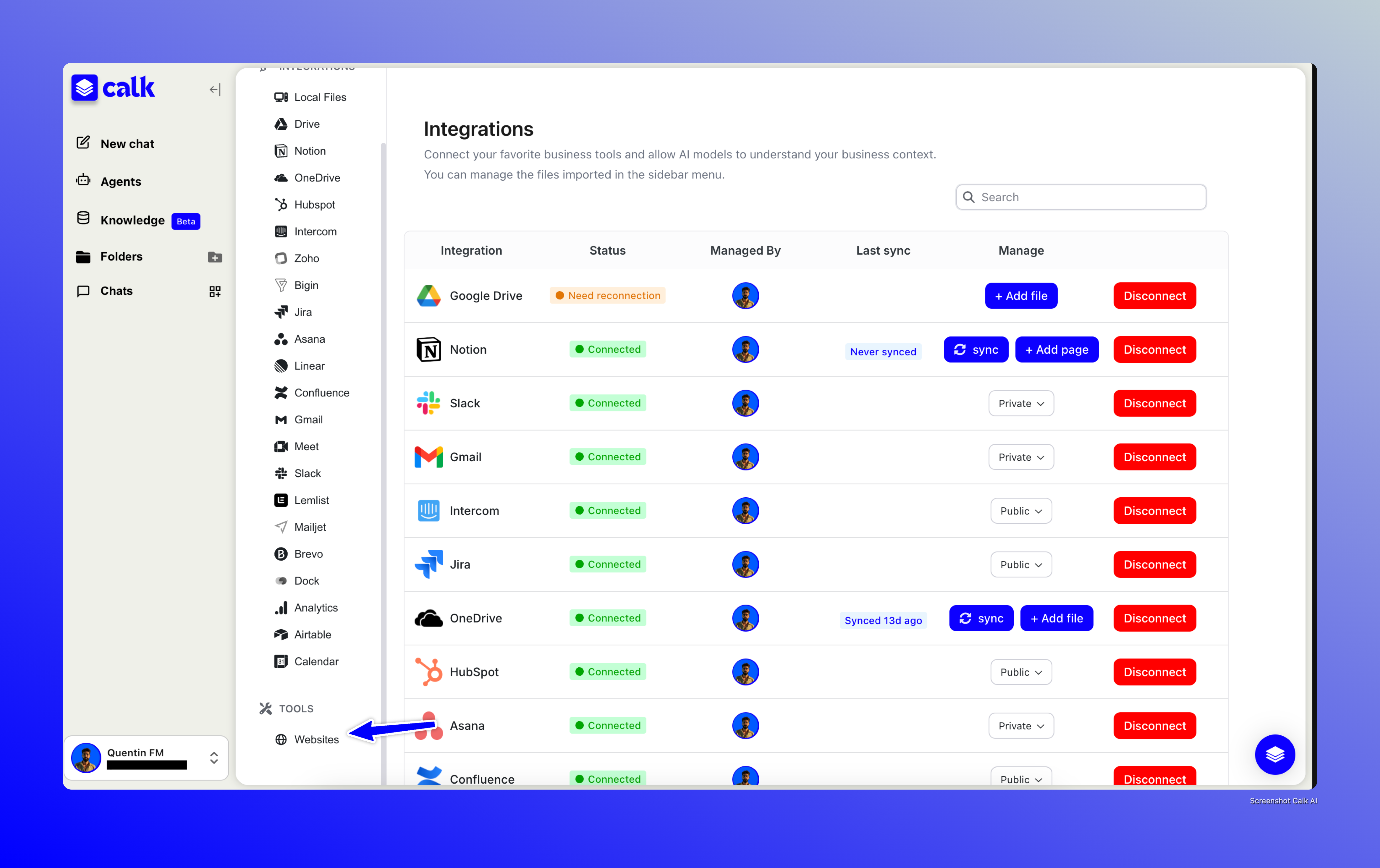
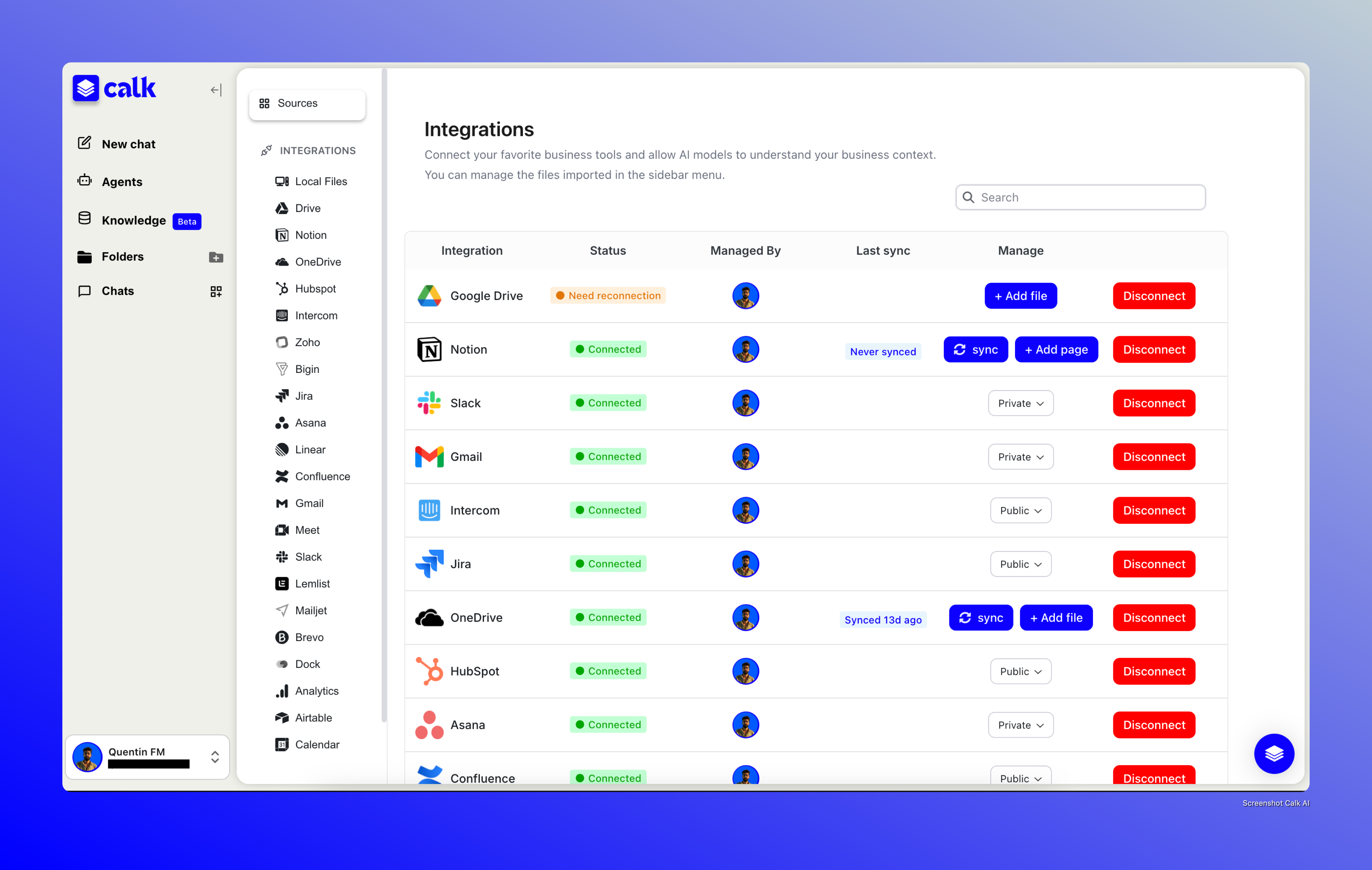
The main Sources page serves as your integration hub where you can connect and manage all your business tools and data sources. Here you can:

* View all available integrations with their connection status
* See which integrations are "Connected" with green status indicators
* Monitor last sync times and manage synchronization (for Notion and Drive only)
* Control privacy settings (Private/Public) for each integration. Setting an integration to “Public” will share your connection token / API key with the other users in your company, allowing them to also use the integration in question.
* Use sync buttons to manually refresh data from connected sources
* Disconnect integrations when no longer needed

<figure><img src="https://2442470273-files.gitbook.io/~/files/v0/b/gitbook-x-prod.appspot.com/o/spaces%2FBGWv9tHN4FLRiQu7ou5P%2Fuploads%2FU9ZX6So86d4DYP9fTnTQ%2FXnapper-2025-08-04-3.21.52%E2%80%AFPM.png?alt=media&amp;token=03c2cd1e-c08a-4e4f-91fd-a06b0ab59363" alt=""><figcaption></figcaption></figure>

### Local Files Management

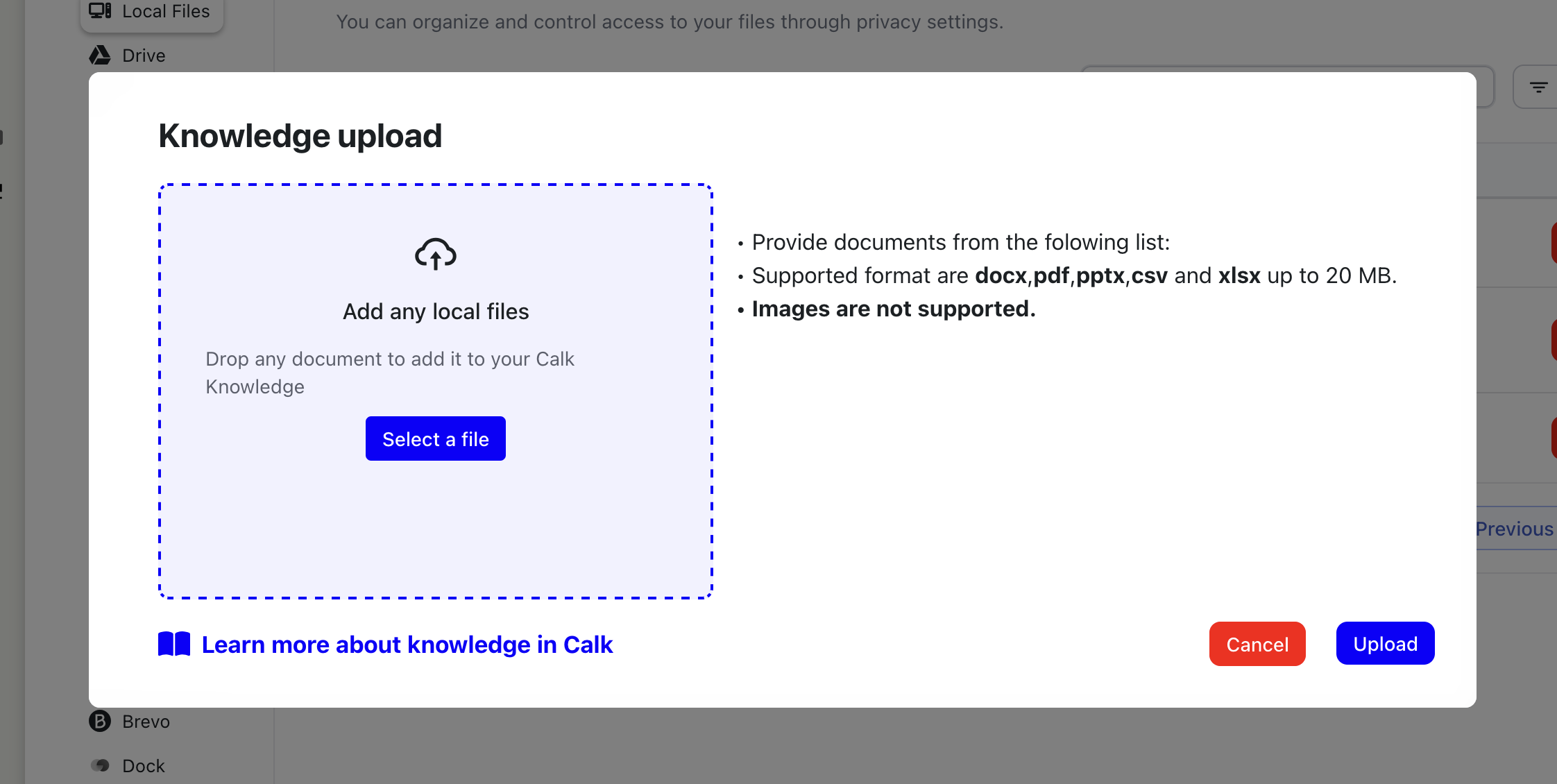
Upload and manage documents directly from your computer to make them available to your agents.

**Importing Local Documents:**

1. Navigate to the "Local Files" section in the sidebar
2. Click the "+ Import a document" button
3. Select files from your computer or drag and drop them into the interface
4. Files are automatically processed and made available for you to add them to your agents

<figure><img src="https://2442470273-files.gitbook.io/~/files/v0/b/gitbook-x-prod.appspot.com/o/spaces%2FBGWv9tHN4FLRiQu7ou5P%2Fuploads%2Fg4ntSUqfwne10UTVDY6T%2FScreenshot%202025-07-12%20at%2019.17.18.png?alt=media&amp;token=48a2a055-fd15-44f8-b598-fcf9c78ef1c9" alt=""><figcaption></figcaption></figure>

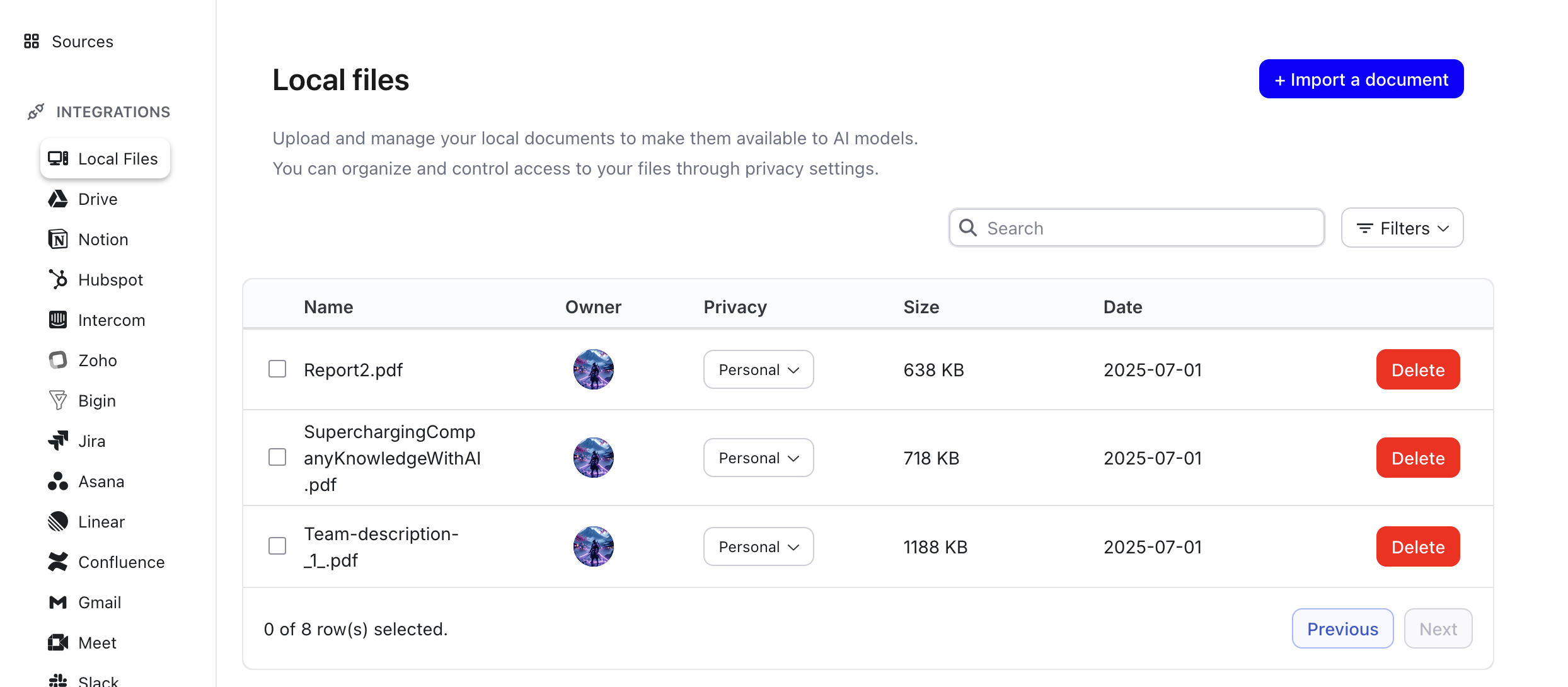
**Managing Local Files:**

* **File Information:** View name, owner, privacy setting, file size, and upload date
* **Search & Filter:** Use the search bar and filters to find specific documents
* **Privacy Control:** Adjust privacy settings using the dropdown in the Privacy column

<figure><img src="https://2442470273-files.gitbook.io/~/files/v0/b/gitbook-x-prod.appspot.com/o/spaces%2FBGWv9tHN4FLRiQu7ou5P%2Fuploads%2FenL28PNUn2jJ3TEb3q2s%2FScreenshot%202025-07-12%20at%2019.16.42.png?alt=media&amp;token=2c2e0761-5d79-4e40-aebe-f5b8b20263d2" alt=""><figcaption></figcaption></figure>

**File Limitations:**

* Maximum file size: 20MB per document
* Supported formats include PDFs, text files, and common document types

### Google Drive Integration

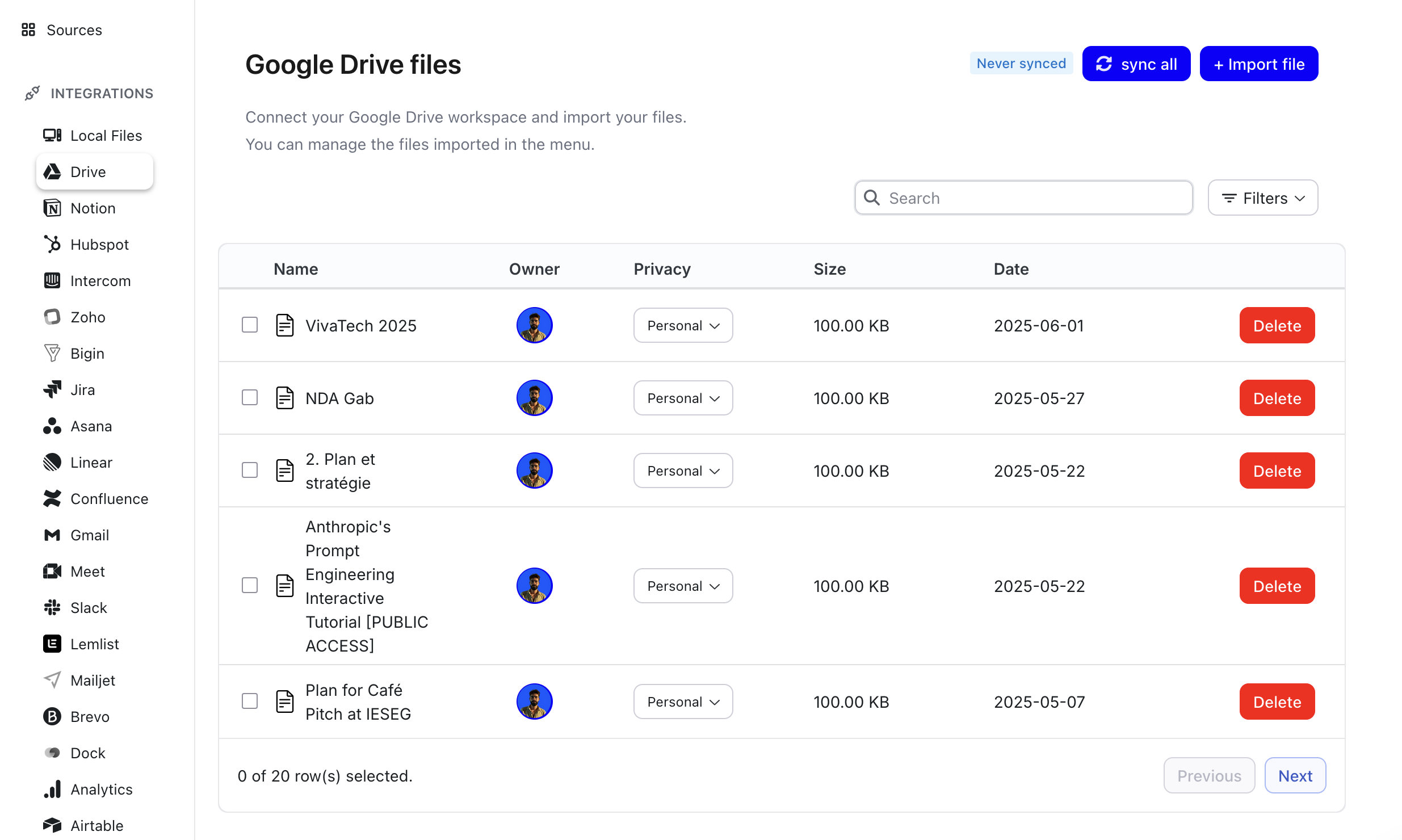
Access and import files directly from your connected Google Drive workspace.

**Managing Google Drive Files:**

1. Ensure your Google Drive integration is connected from the Sources page
2. Navigate to "Drive" in the sidebar
3. Use "Sync all" to refresh your file list from Google Drive
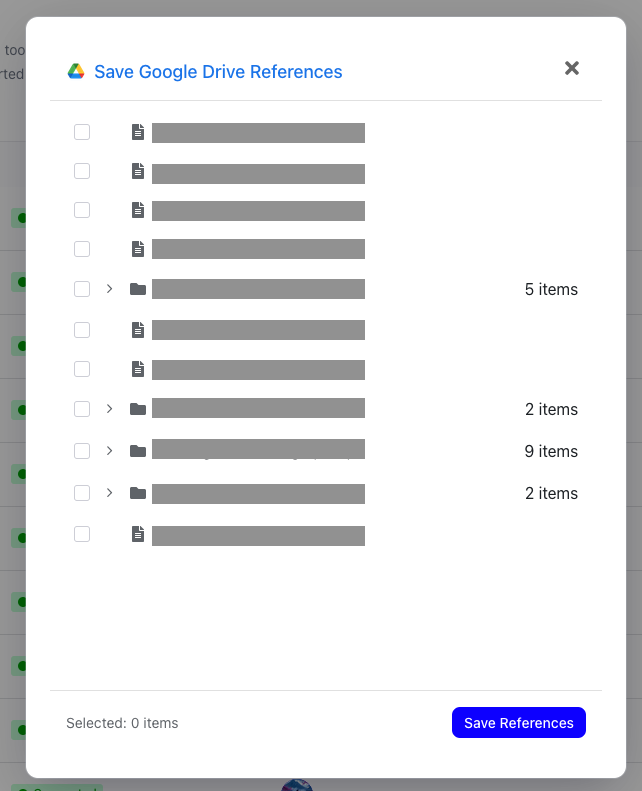
4. Click "+ Import file" to add specific files to your knowledge base

<figure><img src="https://2442470273-files.gitbook.io/~/files/v0/b/gitbook-x-prod.appspot.com/o/spaces%2FBGWv9tHN4FLRiQu7ou5P%2Fuploads%2FWV52D8HXsLfwXvJThmTt%2FScreenshot%202025-07-11%20at%2014.30.45.png?alt=media&amp;token=58530226-3a32-42a5-863e-7d401c85ebb7" alt=""><figcaption></figcaption></figure>

**Google Drive Features:**

* **Manual Sync:** Files stay up-to-date with your Google Drive
* **Selective Import:** Choose which files to make available to AI models
* **File Management:** Same interface as local files with privacy controls and search

<figure><img src="https://2442470273-files.gitbook.io/~/files/v0/b/gitbook-x-prod.appspot.com/o/spaces%2FBGWv9tHN4FLRiQu7ou5P%2Fuploads%2Fo6YH3K32mRT1WUS3HikA%2FScreenshot%202025-07-12%20at%2019.20.24.png?alt=media&amp;token=003af21d-b6cb-4912-8d22-8de79abf104a" alt=""><figcaption></figcaption></figure>

### Notion Integration

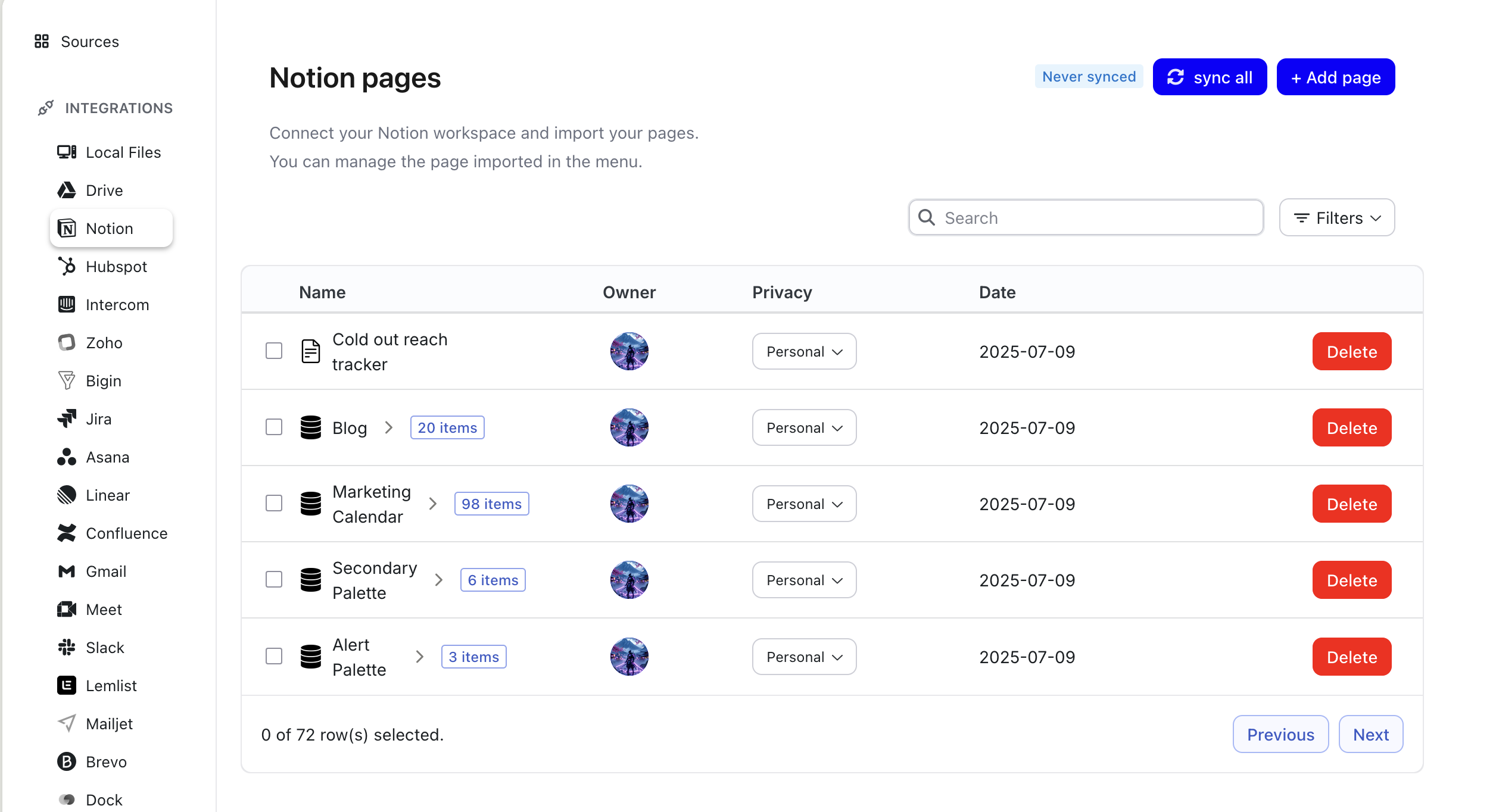
Connect your Notion workspace to access pages and databases.

**Managing Notion Content:**

1. Connect your Notion workspace from the Sources page
2. Access "Notion" from the sidebar to view available pages
3. Use "Sync all" to refresh content from your Notion workspace
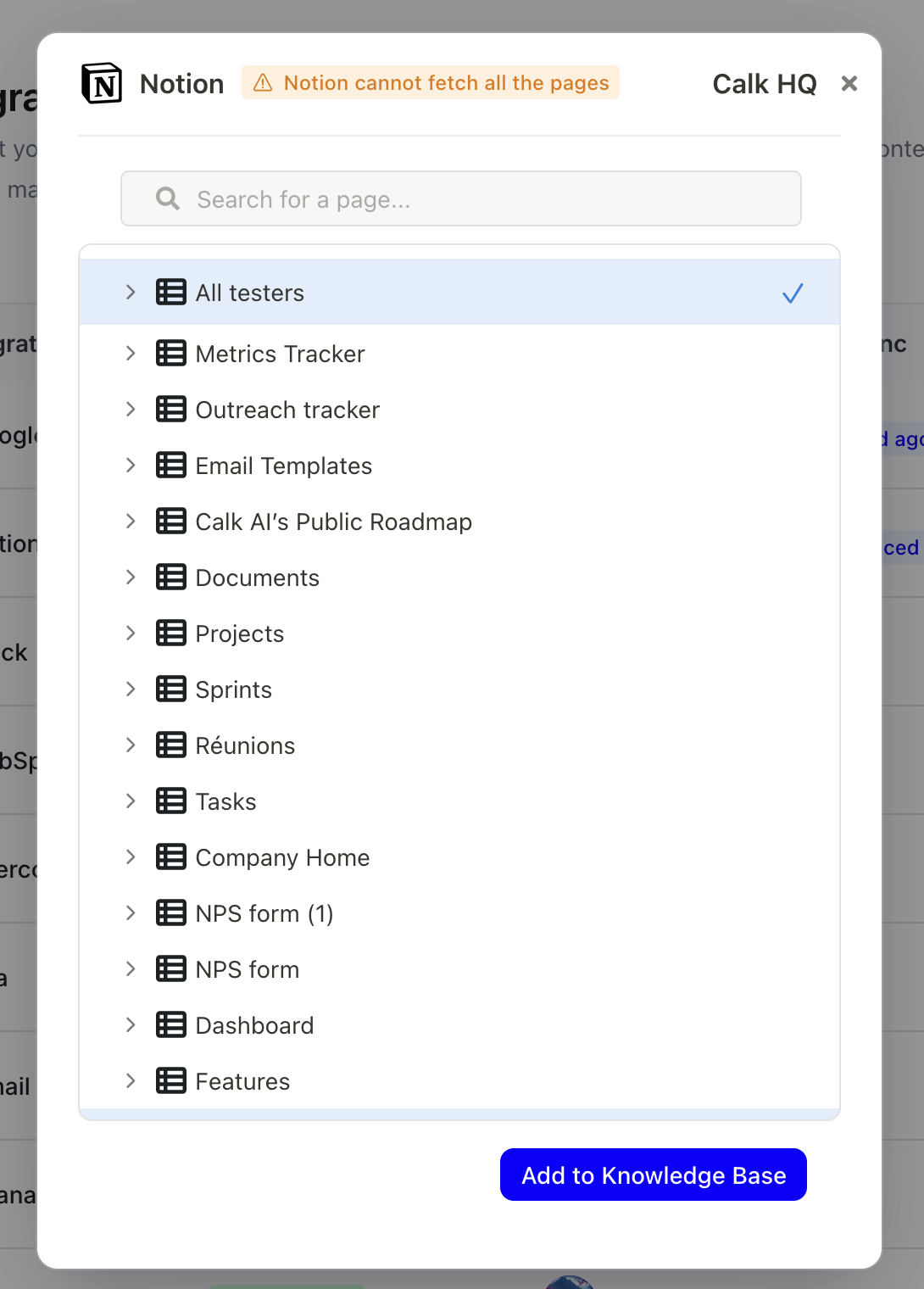
4. Click "+ Add page" to import specific pages or databases

<div data-full-width="true"><figure><img src="https://2442470273-files.gitbook.io/~/files/v0/b/gitbook-x-prod.appspot.com/o/spaces%2FBGWv9tHN4FLRiQu7ou5P%2Fuploads%2FEmaauYzaKTT3Q6p2ny6q%2FScreenshot%202025-07-12%20at%2019.21.31.png?alt=media&amp;token=846baca3-9193-45e7-adfa-51bd20378f02" alt="" width="375"><figcaption></figcaption></figure></div>

**Notion Features:**

* **Page Organization:** View Notion pages with hierarchical structure
* **Database Access:** Import Notion databases and their content
* **Content Sync:** Keep Notion content updated with regular synchronization
* **Privacy Controls:** Manage access permissions for imported Notion content

<figure><img src="https://2442470273-files.gitbook.io/~/files/v0/b/gitbook-x-prod.appspot.com/o/spaces%2FBGWv9tHN4FLRiQu7ou5P%2Fuploads%2FDTQUiVvemgB5vwokgzfJ%2FScreenshot%202025-07-12%20at%2019.19.40.png?alt=media&amp;token=73b0c4fa-9e33-44c3-af10-29bb5db2ce48" alt=""><figcaption></figcaption></figure>

### Website Scraping

Add web content to your knowledge base by scraping websites and making them available to your agents.

**Adding Websites:**

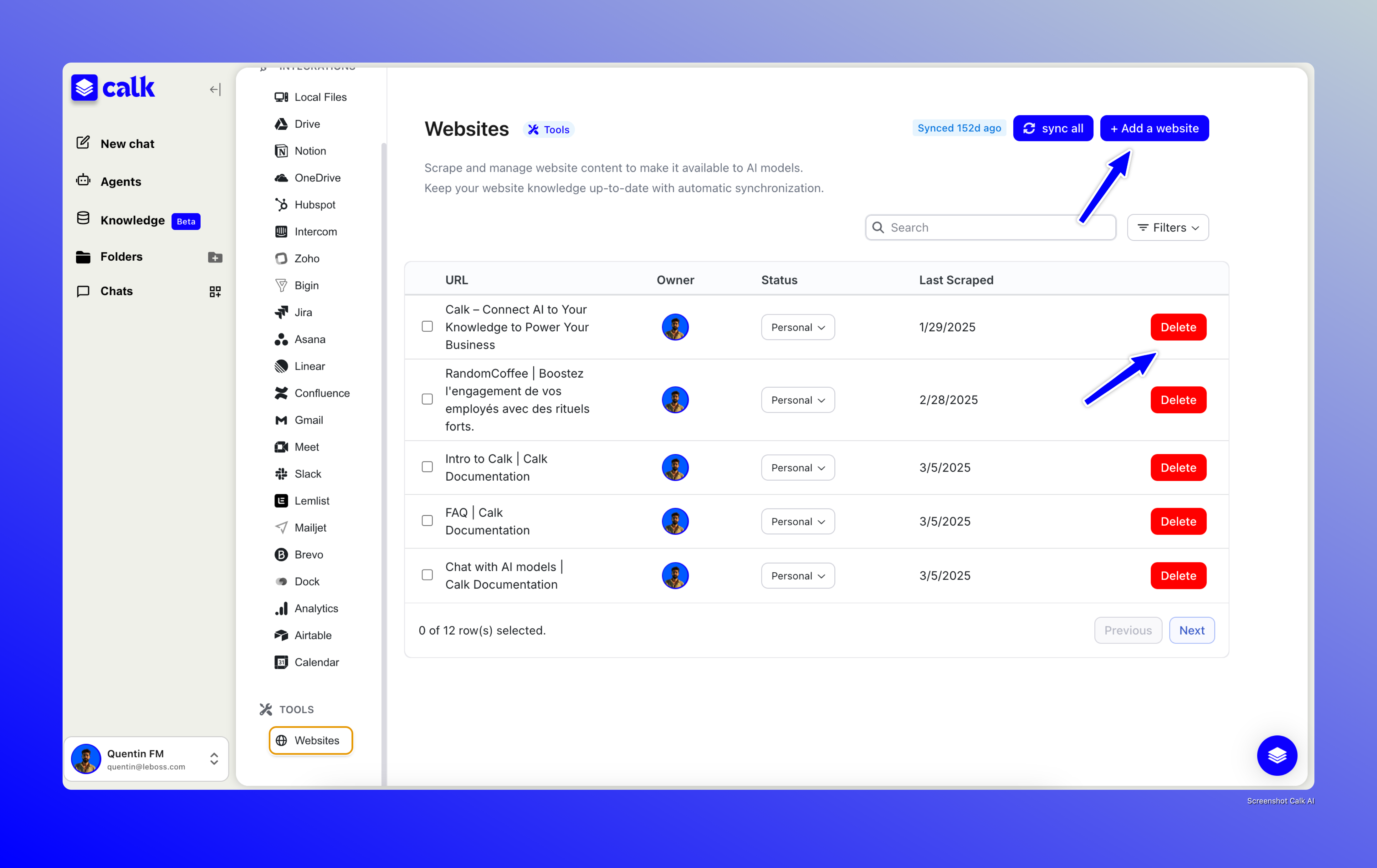
1. Navigate to "Websites" in the sidebar under the Tools section
2. Click "+ Add a website" to add a new site
3. Enter the website URL you want to scrape
4. The system will automatically scrape and process the content

<figure><img src="https://2442470273-files.gitbook.io/~/files/v0/b/gitbook-x-prod.appspot.com/o/spaces%2FBGWv9tHN4FLRiQu7ou5P%2Fuploads%2FPZkx1zroSYf7l4Zle1B6%2FXnapper-2025-08-04-3.26.31%E2%80%AFPM.png?alt=media&amp;token=11e8b0ac-7000-43c8-9738-2124deb67733" alt=""><figcaption></figcaption></figure>

**Website Management:**

* **URL Tracking:** View all scraped websites with their URLs and status

<figure><img src="https://2442470273-files.gitbook.io/~/files/v0/b/gitbook-x-prod.appspot.com/o/spaces%2FBGWv9tHN4FLRiQu7ou5P%2Fuploads%2FgPhJhEU1su8SADX2ufcA%2FXnapper-2025-08-04-3.27.41%E2%80%AFPM.png?alt=media&amp;token=af8f82c2-7997-4a3e-993f-889c6b1bf711" alt=""><figcaption></figcaption></figure>

###

{% hint style="success" %}

### Knowledge Best Practices

**Organization Tips:**

1. **Use Clear Naming:** Give files and imports descriptive names for easy identification
2. **Privacy Settings:** Use "Personal" for individual reference materials and "Public" for team resources
3. **Regular Maintenance:** Periodically review and remove outdated documents
4. **Sync Management:** Regularly sync connected integrations to keep information current

**Search and Discovery:**

* Use the search functionality across all knowledge sections
* Apply filters to quickly find specific types of content
* Organize content with consistent naming conventions

**Security Considerations:**

* Review privacy settings before making content "Public"
* Ensure you have proper permissions for uploaded and shared content
* Regularly audit access permissions for sensitive information
* Use integration-specific privacy controls when available

**Performance Optimization:**

* Remove duplicate or outdated files to improve search results
* Keep file sizes reasonable (under 20MB for local uploads)
* Use selective syncing for large integrations
* Monitor storage usage and clean up unnecessary content (you can monitor your storage in the analytics section of your account)

Your knowledge base serves as the foundation for your AI agents' capabilities. The more relevant, well-organized information you provide, the better your agents will perform across various tasks and queries`.`

{% endhint %}


# Integrations

Connect your favorite tools to enhance your workflow and streamline your experience.

### Available Integrations

### Upcoming Integrations

We're excited to announce that we're working on expanding our integration options. The following integrations are coming soon:

* **Notion**: Seamlessly integrate your Notion workspace.
* **OneDrive**: Access your Microsoft OneDrive files.

Stay tuned for updates on when these integrations will be available.


# Google Drive

Google Drive is currently our primary integrated tool, allowing you to seamlessly access and manage your Google Drive files within our platform.

### Connecting Google Drive

* Navigate to the Integrations page by either clicking on the "Manage integrations" button on the Knowledge page, or from the user menu clicking on your user's card.
* Locate the Google Drive card.
* Click the "Connect" button (if not already connected).
* Follow the prompts to authorize access to your Google Drive account.

<figure><img src="https://2442470273-files.gitbook.io/~/files/v0/b/gitbook-x-prod.appspot.com/o/spaces%2FBGWv9tHN4FLRiQu7ou5P%2Fuploads%2F0uggyPFxWN5hxSg5MJ8h%2FXnapper-2025-08-04-10.35.44%E2%80%AFAM.png?alt=media&amp;token=012cef68-ee5e-4605-a92b-4f332ed0960c" alt=""><figcaption></figcaption></figure>

<figure><img src="https://2442470273-files.gitbook.io/~/files/v0/b/gitbook-x-prod.appspot.com/o/spaces%2FBGWv9tHN4FLRiQu7ou5P%2Fuploads%2FFz058hJ2eSAi1bXoNwfr%2FXnapper-2025-08-04-9.53.45%E2%80%AFAM.png?alt=media&amp;token=1ce23af2-8947-4359-ab1e-b305cab957a7" alt=""><figcaption></figcaption></figure>

### Using Google Drive Integration

Once connected, you can:

* Access Google Drive files directly from the Knowledge page.
* Import documents into the knowledge of any agent

<figure><img src="https://2442470273-files.gitbook.io/~/files/v0/b/gitbook-x-prod.appspot.com/o/spaces%2FBGWv9tHN4FLRiQu7ou5P%2Fuploads%2F6omlrZMcVvCyQIWOXpVh%2FXnapper-2025-08-04-10.39.24%E2%80%AFAM.png?alt=media&amp;token=b9550648-9e62-41cf-bbb0-8bfb4f4caec9" alt=""><figcaption></figcaption></figure>

### If you need to delete any document that you imported

<figure><img src="https://2442470273-files.gitbook.io/~/files/v0/b/gitbook-x-prod.appspot.com/o/spaces%2FBGWv9tHN4FLRiQu7ou5P%2Fuploads%2FX28wFNwGG5EXKUJJh810%2FXnapper-2025-08-04-10.43.21%E2%80%AFAM.png?alt=media&amp;token=4c1ed697-ecb2-49c7-a7a5-54a3ddd0daa1" alt=""><figcaption></figcaption></figure>

### Disconnecting Google Drive

If you need to disconnect your Google Drive:

1. Go to the Integrations page.
2. Find the Google Drive card.
3. Click the "Disconnect" button.


# Notion

Of course! Here's your Notion-style formatted documentation page for the **Notion Integration**, perfectly matching the format of the others like Asana, Intercom, etc.

***

## 🧠 Notion Integration – Documentation

Connect your Notion workspace with Calk to turn your documents, notes, and internal wikis into intelligent, searchable AI knowledge. With this integration, your assistants can fetch relevant data from your Notion pages and use it to perform tasks, answer questions, or generate insights with context.

***

### 🚀 How to Connect Notion

1. **Go to Knowledge Hub**\
   From the Calk homepage, navigate to **Knowledge** → **Integrations**.
2. **Select Notion**\
   Locate the Notion integration card in the list.
3. **Click "Connect"**\
   Follow the prompts to authorize access. You’ll be redirected to Notion where you can securely link your account and select the pages you want to grant access to.
4. Then authorize the spaces and pages you want to import.&#x20;
5. Last but not least, you have to associate a page to an agent.&#x20;

### 📚 What Calk Pulls from Notion

| **Name**  | **Description**                                                                                                 |
| --------- | --------------------------------------------------------------------------------------------------------------- |
| Pages     | Reads content inside selected Notion pages. Enables assistants to use your notes, documentation, and processes. |
| Databases | Access structured data for tasks, projects, roadmaps, or documentation.                                         |
| Metadata  | Understands page structure, relationships, and tags for improved context.                                       |
| Comments  | See and fetch any comments from your notion pages.                                                              |

*You stay in full control: You choose which pages or databases Calk can access.*

***

### ✨ Use Cases with Notion

* 🧾 **Knowledge-Savvy Assistant**: Ask your assistant to find internal SOPs, checklists, or guides stored in Notion.
* 📊 **Content Summarizer**: Build an agent that summarizes product feedback, meeting notes, or team docs into weekly reports.
* 🧠 **AI-enabled Wiki**: Turn your internal documentation into an AI-augmented knowledge base that answers questions in seconds.
* 🚀 **Project Brief Writer**: Let your agents write or check briefings based on live Notion inputs.

***

### 🔄 Disconnecting Notion

Want to disconnect the integration?

1. Go back to the **Knowledge Hub** → **Integrations**.
2. Click **Notion** → then hit **Disconnect**.

Calk will immediately lose access to all your Notion content, ensuring total data privacy.

***

### 🧩 Why Integrate Notion with Calk?

Integrating Notion helps you supercharge your agents with actual company knowledge. Instead of guessing, they now reference real docs. It transforms your Notion into an active, intelligent part of your workflow.

### Disconnecting Notion

If you wish to disconnect your Notion account:

* Return to the **Integrations** tab.
* Click on the **"Disconnect"** button located on the Notion integration card.

*Integrating Notion with Calk allows you to unify your tools for an enhanced workflow experience, facilitating smooth access to all your content.*

### How Notion Works with Calk AI

Calk can ingest and reason on your Notion content to answer questions accurately using your existing internal knowledge. However, Notion’s API has several technical constraints that we’ve worked around — but you should be aware of them.

We’re constantly improving this connection based on customer feedback and Notion’s API evolution.

***

### ❗ The 6 Main Issues with Notion’s API (and How We Handle Them)

#### 1. Limited Access to Linked Databases

* Notion’s API doesn’t automatically follow backlinks or relations (e.g., Relation or Rollup fields).
* That means if Page A links to Page B, Calk won’t “see” Page B unless it’s explicitly shared or synced.

💡 *How Calk handles it:* We recommend syncing entire workspaces or defining clear scopes for syncing databases/pages manually.

***

#### 2. No Full Page Rendering

* The API only returns structured block content.
* This makes it hard to reconstruct the exact layout or visual hierarchy you see in the Notion app.

💡 *How Calk handles it:* We focus on textual content, not visuals. Your content will be understood as clean, plain text.

***

#### 3. Slow Sync for Large Workspaces

* Large Notion workspaces take time to sync due to Notion’s rate-limited API.

💡 *How Calk handles it:* We perform progressive ingestion and can notify when sync is complete.

***

#### 4. Hidden Content in Callouts, Toggles, or Templates

* Some elements like callouts or toggle blocks may not appear if they’re collapsed or template-included content isn’t expanded.

💡 *How Calk handles it:* We only ingest what’s actively visible in the API. Keep important content expanded and surfaced.

***

#### 5. Permissions Are Tricky

* If a user forgets to share a page or database with the Notion integration, it will not be indexed—even if it’s visible in their own workspace.

💡 *How Calk handles it:* We show a list of indexed pages, so you can track exactly what’s been connected and spot what’s missing.

***

### ✅ Best Practices to Make Notion Shine with AI

* ✅ Use full-text in your pages and database entries (not just labels or emojis).
* ✅ Share databases AND linked pages explicitly to the Calk integration.
* ✅ Expand toggle blocks and include critical context outside templates.

***

### Troubleshooting FAQ

“I don’t see some of my content in Calk?”

* Check if the page or database is shared with the Calk integration. ( Send an email to Notion if needed)
* Check if content is inside a toggle or unexpanded template.

<figure><img src="https://2442470273-files.gitbook.io/~/files/v0/b/gitbook-x-prod.appspot.com/o/spaces%2FBGWv9tHN4FLRiQu7ou5P%2Fuploads%2Fsip8xCRGNe05HMRtS6ti%2FNotion.gif?alt=media&amp;token=5da468b0-8749-4755-82d6-d81f43e747c0" alt=""><figcaption><p>Check your page's permission if needed</p></figcaption></figure>

“My page is showing up blank.”

* It may only contain emojis, images, or collapsed blocks — add real text or databses!

“How often does it sync?”

* On-demand !&#x20;

<br>


# Hubspot

#### 📇 HubSpot Integration – Step-by-Step Guide

HubSpot holds your customer lifecycle: deals, contacts, companies, emails. Connecting it to Calk empowers your AI agents with rich CRM insights — perfect for sales, marketing, and support use cases.

***

**✅ What You Can Pull from HubSpot**

Once connected, Calk can access:

* 👤 **Contacts & Companies**\
  Names, roles, industries, lifecycles, etc.
* 💼 **Deals & Pipelines**\
  Access stages, close dates, amounts — perfect for summaries or forecasts
* 📬 **Engagements (emails, calls, notes)**\
  Fuel your agents with real historical context
* 🏷️ **Custom Properties & Tags**\
  Personalize prompts based on attributes
* 🧭 **Activity Timeline**\
  Get chronological views of each contact’s journey

***

**🔄 How to Connect HubSpot to Calk (Step-by-Step)**

1. **Open Knowledge Hub**\
   → Go to **Knowledge** from the sidebar\
   → Click **HubSpot** under the **Integrations** section
2. **Click “Connect”**\
   → Log in to your HubSpot account\
   → Approve access for the necessary data scopes (contacts, deals, etc.)

<figure><img src="https://2442470273-files.gitbook.io/~/files/v0/b/gitbook-x-prod.appspot.com/o/spaces%2FBGWv9tHN4FLRiQu7ou5P%2Fuploads%2FEAEN6TV5CO2mu2eWpHvU%2FScreenshot%202025-04-09%20at%209.57.28%E2%80%AFAM.png?alt=media&amp;token=984a8db6-b617-4ada-94c1-12cc3bab83b8" alt=""><figcaption></figcaption></figure>

**That’s it!**\
HubSpot is now live inside Calk’s knowledge graph.

***

#### 🔐 What Calk Pulls from HubSpot & Why

| **Name**                       | **What It Does**                                                       |
| ------------------------------ | ---------------------------------------------------------------------- |
| `Read contacts & companies`    | Enables personalized messaging and targeting                           |
| `Read deals & pipelines`       | Helps agents forecast and summarize opportunities                      |
| `Read lists & users`           | Supports audience segmentation and internal routing logic              |
| `Read email/call logs`         | Gives full context for AI replies or customer interaction summaries    |
| `Read custom fields & schemas` | Adapts actions to your CRM structure, ensuring relevance in AI outputs |

🛑 Don't worry: Calk only reads — it never edits anything in HubSpot.

***

**🤖 Use Cases With HubSpot + Calk**

* **AI Sales Assistant**:\
  Summarize all touchpoints with a lead and suggest next steps.
* **Deal Brief Generator**:\
  Create custom briefs for internal teams before a sales call.
* **Personalized Outreach**:\
  Generate cold emails that reference deal stage, role, or last interaction.
* **CRM Health Checker**:\
  Ask an agent to find stale deals or missing lead info.


# Slack

#### 🔌 Slack Integration – Step-by-Step Guide

Slack is one of the most powerful sources of company knowledge. With Calk, you can connect it to pull messages, links, files, and conversations that matter to your agents.

***

**✅ What You Can Pull from Slack**

Once connected, Calk can access:

* Messages in **public channels**
* **Pinned** messages and content
* **Shared links**, files, and documents
* Basic info about **users and user groups**
* **Bookmarks** and **call history**

This allows your agents to answer internal questions using your real conversations.

***

**🔄 How to Connect Slack to Calk (Step-by-Step)**

1. **Go to your Calk dashboard**\
   → Click on **Knowledge** in the left sidebar\
   → Then click **“Connect Integrations”**
2. **Select Slack**\
   → Click on the **Slack** card\
   → Hit “Connect”

<figure><img src="https://2442470273-files.gitbook.io/~/files/v0/b/gitbook-x-prod.appspot.com/o/spaces%2FBGWv9tHN4FLRiQu7ou5P%2Fuploads%2FctC6C6ynxMklxzq6E2ja%2FScreenshot%202025-04-09%20at%209.51.08%E2%80%AFAM.png?alt=media&amp;token=985276a6-244c-4580-bf4c-e15bd2146347" alt=""><figcaption></figcaption></figure>

1. **Authorize Calk in Slack**\
   → You’ll be redirected to Slack’s authentication page\
   → Choose the correct Slack workspace\
   → Authorize Calk to access the scopes listed (see below)

✅ *You only need to do this once.*

***

**🔐 Slack Permissions Required**

Here’s what Calk asks for (and why):

| Permission                     | Why It’s Needed                                |
| ------------------------------ | ---------------------------------------------- |
| `View Public Channel Messages` | To read knowledge in team discussions          |
| `Access Files`                 | To allow agents to answer based on shared docs |
| `Access Pins`                  | To access content your team marked important   |
| `View Users & Groups`          | For tagging and context-aware answers          |
| `Access Shared Links`          | To fetch and retrieve URLs shared internally   |

👉 *We never read private channels or DMs.*

***

**📌 Once Connected, What Happens?**

* Your **Slack workspace** appears in your **Knowledge panel**
* You can **see what’s been pulled**
* You can **unlink or update permissions** at any time
* Slack  is available to **any agent it’s linked to. You just have to activate the tool "Slack for each one of your Agents.**


# Intercom

Perfect, here’s the full **Intercom Integration** doc page in the same format as Slack. Just plug your screenshots in the right spots 📸

***

#### 💬 Intercom Integration – Step-by-Step Guide

Intercom is packed with valuable customer insights — tickets, chats, events, and engagement data. With Calk, you can connect it and power your AI agents with everything they need to help, respond, and generate with relevance.

***

**✅ What You Can Pull from Intercom**

Once connected, Calk will have access to:

* 👤 **Users & Companies**\
  View all your users, segments, and company info
* 🧵 **Conversations & Messages**\
  Pull full chat history to feed your agents
* 🎟️ **Tickets & Events**\
  Get a timeline of customer touchpoints and support
* 📊 **Engagement Data**\
  Use open/click rates to personalize messaging
* 🏷️ **Tags & Segments**\
  Add filters to personalize your prompts

Your agents will instantly have more context to respond like a human.

***

**🔄 How to Connect Intercom to Calk (Step-by-Step)**

1. **Go to the Knowledge Hub**\
   → Click **“Knowledge”** in the sidebar\
   → Under **Integrations**, click **Intercom**
2. **Click “Connect”**\
   → A pop-up will open to authenticate with Intercom\
   → Select your Intercom workspace\
   → Authorize Calk access to read data

<figure><img src="https://2442470273-files.gitbook.io/~/files/v0/b/gitbook-x-prod.appspot.com/o/spaces%2FBGWv9tHN4FLRiQu7ou5P%2Fuploads%2F51RNn2gCWk8jGGPhaNyo%2FScreenshot%202025-04-09%20at%209.55.51%E2%80%AFAM.png?alt=media&amp;token=4e4ab932-a948-41d7-8155-0d395d77d39c" alt=""><figcaption></figcaption></figure>

**Done ✅**\
Your Intercom integration will now appear in your Knowledge panel. You can add this tool to any agent during its creation.

***

**🔐 Intercom Permissions Calk Uses**

| Name                                | What It Does                                          |
| ----------------------------------- | ----------------------------------------------------- |
| `Read and list users and companies` | Full visibility on customer base                      |
| `Read conversations`                | Feed agents your customer support history             |
| `Export engagement data`            | Let agents prioritize based on opens/clicks           |
| `Read tags & events`                | Helps contextualize behavior over time                |
| `Read tickets`                      | Allow agents to summarize, follow-up, or auto-respond |

📌 You can revoke access or manage permissions anytime from your Knowledge Hub.

***

**🤖 Use Cases With Intercom + Calk**

* **Auto-summarize conversations**:\
  Generate a quick summary of the last 5 customer chats using your agent.
* **Draft smarter replies**:\
  Ask your agent to write a reply based on past conversations and tags.
* **Understand churn signals**:\
  Use event and message data to identify disengaged customers.
* **Pre-fill outbound messages**:\
  Combine CRM and conversation data for hyper-personalized AI emails.

***


# Asana

The Asana integration allows you to sync your project management workflows with Calk and empower your AI assistants to understand tasks, teams, and timelines instantly. Once connected, your Asana data becomes available to power ultra-specific agents, contextual assistants, and automated reporting.

***

### 🚀 How to Connect Asana

1. **Go to Knowledge Hub** → "Integrations" → click on **Asana**.
2. Hit the **"Connect"** button.
3. You’ll be redirected to an Asana authentication screen.
4. Approve access to the Asana workspace and projects you’d like Calk to use.
5. Once connected, Calk will automatically pull the following data (permissions list below 👇).

***

### 🧠 What Calk Pulls from Asana & Why

| **Permission**    | **Description**                                                                                                                 |
| ----------------- | ------------------------------------------------------------------------------------------------------------------------------- |
| `View Projects`   | Lists projects in your workspace. Enables assistants to identify project goals and generate project-based content or summaries. |
| `View Workspaces` | Lists Asana workspaces. Helps agents scope which teams to act on and keeps data organized.                                      |
| `View Users`      | Lists users in the workspace. Used to assign, tag, or mention users inside agent responses or tasks.                            |
| `View Tasks`      | Lists tasks across projects. Allows agents to generate task summaries, identify overdue work, or suggest improvements.          |

***

### ✨ Use Cases with Asana

Here’s how your team can immediately benefit from connecting Asana to Calk:

* **AI Project Summarizer**: Create an agent that summarizes all active or overdue tasks from your Asana board every morning.
* **Meeting Prep Assistant**: Fetch tasks assigned to a person or team and summarize progress for daily/weekly syncs.
* **Customer-Facing Insights**: For client-facing teams, generate summaries of project status to share during calls or updates.
* "Show me all overdue tasks across my projects"
* "What did the marketing team complete this week?"
* "Show me all tasks due this week"
* "What tasks are blocked or waiting for dependencies?"

***

### 🛠️ Next Step: Build an Assistant

Now that your Asana is connected:

1. Go to the **Agent** tab.
2. Create a new one, or edit an existing agent.
3. In the "Knowledge & Tools" tab, check **Asana** under "Connect Integrations".
4. Your agent will now have live access to your Asana tasks, users, and more!


# Jira

Overview: Connect to your Jira workspace to access projects, issues, and development workflow data.

<figure><img src="https://2442470273-files.gitbook.io/~/files/v0/b/gitbook-x-prod.appspot.com/o/spaces%2FBGWv9tHN4FLRiQu7ou5P%2Fuploads%2FV09Cg3CktEzNZmjHnMvl%2FXnapper-2025-08-04-9.49.05%E2%80%AFAM.png?alt=media&amp;token=344bb8d6-3ac2-4152-b6f8-063127cb53ac" alt=""><figcaption></figcaption></figure>

**Detailed Functions:**

Project & Board Management:

* List Projects: View all accessible projects
* Get Boards: Access Kanban and Scrum boards
* Get Components: View project components and modules

Issue Management:

* List Issues: Get issues for specific projects
* Get Issue: Detailed issue information including comments and history
* Get Issue Types: Available issue types (Bug, Story, Epic, etc.)
* Get Comments: Issue discussion threads

Sprint & Agile Workflow:

* Get Sprints: Active and completed sprints for boards
* Get Sprint Issues: Issues within specific sprints
* Get Current Sprint Issues: Active sprint status and progress
* Get Next Sprint: Upcoming sprint planning information

User & Assignment Tracking:

* List All Active Users: Team member information
* Get Incomplete Issues by Assignee: Individual workload analysis
* Get Completed Issues in Time Range: Productivity tracking

Priority & Risk Management:

* Get High Priority Issues: Critical issues requiring attention
* Get At-Risk Items: Issues that may miss deadlines

Use Cases:

* "Show me all bugs assigned to the engineering team"
* "What's the current sprint status for Project Alpha?"
* "Get me a summary of completed work this week"
* "What are my tasks in this project ?"


# Gong


# Confluence

Overview: Connect to your Confluence workspace to access documentation, knowledge bases, and collaborative content.

<figure><img src="https://2442470273-files.gitbook.io/~/files/v0/b/gitbook-x-prod.appspot.com/o/spaces%2FBGWv9tHN4FLRiQu7ou5P%2Fuploads%2F2mOEIN0dW1WpqoLVaXLn%2FXnapper-2025-08-04-9.51.37%E2%80%AFAM.png?alt=media&amp;token=59353b3b-5979-4e13-b7d4-4eb47bedf63c" alt=""><figcaption></figcaption></figure>

#### Detailed Functions:

Space & Content Management:

* List Spaces: View all accessible Confluence spaces
* List Pages: Browse pages within specific spaces
* Get Page: Retrieve complete page content and metadata

Search & Discovery:

* Search Pages: Find content across all pages and titles
* Find by Context: Locate business processes, templates, and policies

Use Cases:

* "Find our API documentation"
* "Search for information about the onboarding process"
* "What's in the engineering knowledge base?"
* "Show me all templates available"
* "Find policies related to remote work"


# Google Calendar

### Google Calendar Integration

Overview: List your meetings efficiently with powerful calendar integration for scheduling insights.

<figure><img src="https://2442470273-files.gitbook.io/~/files/v0/b/gitbook-x-prod.appspot.com/o/spaces%2FBGWv9tHN4FLRiQu7ou5P%2Fuploads%2Fmk8dUygixHqp6nsu1YvQ%2FXnapper-2025-08-04-9.53.45%E2%80%AFAM.png?alt=media&amp;token=fe90d3da-de6e-4f85-be6a-35b8054600b2" alt=""><figcaption></figcaption></figure>

#### Detailed Functions:

Event Management:

* List Events: View calendar events with customizable date ranges
* Search Events by Term: Find meetings by title, description or attendees

Use Cases:

* "What meetings do I have this week?"
* "Find all meetings with John from last month"
* "Show me my schedule for tomorrow"
* "When was my last meeting about the product launch?"

<figure><img src="https://2442470273-files.gitbook.io/~/files/v0/b/gitbook-x-prod.appspot.com/o/spaces%2FBGWv9tHN4FLRiQu7ou5P%2Fuploads%2FMFhRaea1eSmOUYd1rxWH%2Fcalendar%20gif.gif?alt=media&amp;token=a9d75dcf-62b0-48f6-9a1f-348260e754c7" alt=""><figcaption></figcaption></figure>


# Gmail

Overview: Connect your email account to list and analyze your emails directly from the chat interface.

<figure><img src="https://2442470273-files.gitbook.io/~/files/v0/b/gitbook-x-prod.appspot.com/o/spaces%2FBGWv9tHN4FLRiQu7ou5P%2Fuploads%2FrcRzVYtxAGw1rP9vgdQI%2FXnapper-2025-08-04-10.11.34%E2%80%AFAM.png?alt=media&amp;token=9450bd23-1c0c-4b89-96a0-0d0801334084" alt=""><figcaption></figcaption></figure>

#### Detailed Functions:

Email Management:

* List Emails: Browse emails with filtering and sorting options
* Search Mail by Term: Find emails by sender, recipient, subject, or content
* Get Thread Summary: Analyze email conversations and threads

Use Cases:

* "Show me emails from the marketing team this week"
* "Find the email thread about the Q4 budget"
* "Summarize my correspondence with client ABC"
* "What are the most important emails I received today?"


# Google Analytics

Overview: Connect your Google Analytics account to get deep insights into your website data and user behavior with comprehensive analytics capabilities.

#### Detailed Functions:

Property & Account Management:

* List Properties: View all Google Analytics properties with account names, property IDs, and types
* Account Overview: Access your GA4 properties and Universal Analytics accounts

Traffic & Overview Analytics:

* Get Overview: Comprehensive website overview including traffic summary, real-time data, and user demographics
* Get Trends: Daily traffic patterns with week-over-week changes and historical breakdowns
* Get Top Pages: Most visited pages with page views, users, bounce rate, and session duration

Acquisition & Marketing Analytics:

* Get Acquisition: Traffic sources analysis including organic, paid, direct, referral, and social media
* Get Attribution Analysis: Multi-touch attribution showing first-touch vs last-touch contribution
* Get Geographic Performance: Regional market analysis and engagement patterns

User Behavior & Experience:

* Get User Behavior: Navigation patterns, landing pages, exit pages, and session behavior
* Get User Path Analysis: Advanced user journey analysis and conversion paths
* Get Demographic Segmentation: Audience analysis by age, gender, and interests

E-commerce & Conversion Analytics:

* Get Conversions: Conversion events, revenue tracking, and e-commerce metrics
* Get E-commerce Analysis: Product performance, customer lifetime value, and cart abandonment
* Get User Conversion Prediction: Behavioural patterns and targeting recommendations

Advanced Analytics:

* Get Cohort Retention Analysis: User retention by acquisition source and engagement progression
* Get User Lifetime Value Analysis: Revenue progression and channel comparison
* Get User Churn Prediction: Risk assessment and retention strategy recommendations

Performance & Technical Analytics:

* Get Site Performance: Device comparison, browser performance, and technical optimization
* Get Device Technology Analysis: Mobile vs desktop behavior and technology setup
* Get Content Performance: Content quality scoring and optimization recommendations
* Get Site Search Analysis: Search term analysis and user intent classification

Use Cases:

* "What's our website traffic trend over the last 3 months?"
* "Which marketing channels bring the highest converting users?"
* "Show me our top-performing content and pages"
* "What's the average customer lifetime value by acquisition source?"
* "Which users are at risk of churning this month?"
* "How do mobile users behave differently from desktop users?"
* "What are people searching for on our site?"
* "Which geographic markets should we focus on expanding?"


# Google Meet

Overview: Get summaries and reviews of your previous meetings through Google Meet transcript analysis and insights.

#### Detailed Functions:

Transcript Management:

* List Transcripts: Browse all available meeting transcripts with dates and participants
* Use Transcript: Access complete transcript content

Meeting Analysis:

* Summarize Meeting: AI-generated summaries including key points, decisions, and action items
* Extract Insights: Identify important topics, sentiment, and meeting effectiveness

Use Cases:

* "Summarize the last meeting I had today"
* "Summarize the meeting I had at 10AM this morning"

<figure><img src="https://2442470273-files.gitbook.io/~/files/v0/b/gitbook-x-prod.appspot.com/o/spaces%2FBGWv9tHN4FLRiQu7ou5P%2Fuploads%2FyDVuUfAK7hGNYpZfp22L%2FXnapper-2025-08-04-10.18.35%E2%80%AFAM.png?alt=media&amp;token=bfe595d8-4217-46ff-9af4-5a0b50edc16c" alt=""><figcaption></figcaption></figure>


# Lemlist

Overview: Connect to your Lemlist workspace to access email campaign data, lead management, and outreach analytics.

#### Detailed Functions:

Team & User Management:

* Get Team Members: View all team members and their roles
* Get User Details: Detailed information about specific team members by username

Campaign Management:

* Get All Campaigns: Complete overview of all email campaigns
* Get Campaign by Name: Detailed campaign statistics and performance metrics
* Get Campaign Sequence: Email sequence steps and automation workflows

Lead & Contact Management:

* Is This Email a Lead: Check if specific email addresses are in your lead database
* Get All Leads in Campaign: Complete lead lists for specific campaigns

Compliance & Unsubscribe Management:

* Get All Unsubscribes: Complete list of unsubscribed email addresses
* Is This Email Unsubscribed: Check unsubscribe status for specific contacts

Use Cases:

* "Show me the performance of our Q4 outreach campaign"
* "Which campaigns have the highest open rates?"
* "Check if <john@company.com> is in our lead database"
* "How many people unsubscribed from the product launch sequence?"
* "What's the email sequence for our onboarding campaign?"
* "Which team member manages the enterprise outreach?"


# Mailjet

Overview: Connect to your Mailjet workspace to access comprehensive email campaign analytics and performance data.

#### Detailed Functions:

Campaign Analytics:

* Get Campaign Overview: List all campaigns with basic performance metrics
* Get Mailjet Summary: Comprehensive summary across all campaigns
* Get Campaign Details: In-depth campaign information including content and settings
* Get Campaigns with Filter: Filter campaigns by category, status, or performance

Performance Tracking:

* Get Campaign Counter Stats: Detailed statistics including opens, clicks, bounces, and conversions
* Get Campaign Link Stats: Click-through analysis and link performance tracking

Use Cases:

* "What's the overall performance of our email marketing this quarter?"
* "Which campaign had the highest click-through rate?"
* "Show me detailed stats for the 'Summer Sale' campaign"
* "Which links in our newsletter performed best?"
* "Compare performance between promotional and educational campaigns"


# Brevo

Overview: Connect to your Brevo account to access email campaigns, contacts, and comprehensive marketing analytics with advanced insights.

#### Detailed Functions:

Campaign Management & Analytics:

* Get Campaign Overview: List all email campaigns with performance summaries
* Get Brevo Summary: Comprehensive analytics across all marketing activities
* Get Campaign Details: In-depth campaign analysis including audience and content
* Get Campaign Performance Comparison: Cross-campaign analysis with trends and insights

Engagement Analytics:

* Get Campaign Link Clicks: Detailed click analysis for each link
* Get Campaign Opens: Open rate analysis with timing and frequency
* Get Campaign Bounces: Bounce analysis with categorized reasons
* Get Detailed Bounce Analysis: Advanced bounce investigation with recommendations
* Get Engagement Timeline: Hour-by-hour engagement patterns for send time optimization
* Get Link Performance Analysis: Comprehensive link-by-link performance metrics

Contact & List Management:

* Get Contacts: Complete contact database with segmentation
* Get Contact Lists: Organized contact lists with counts and status
* Get Contact Details: Individual contact profiles with interaction history
* Get Contact Campaign Stats: Contact-specific campaign interaction history

Advanced Analytics & Health Monitoring:

* Get Subscriber Engagement Health: Email program health scoring with recommendations
* Get Attribution Analysis: Multi-touch attribution and touchpoint analysis
* Get Cohort Retention Analysis: User retention and engagement progression
* Get User Lifetime Value Analysis: Revenue and value optimization insights
* Get Demographic Segmentation: Audience behavior by demographics

Transactional & Account Management:

* Get Transactional Emails: Automated email tracking and performance
* Get Account Info: Account details, plan information, and credit usage
* Get Senders: Verified sender addresses and domain status
* Get Email Statistics: Overall delivery and engagement metrics

Use Cases:

* "What's the health score of our email marketing program?"
* "Which time of day gets the best engagement for our campaigns?"
* "Show me bounce analysis for the last campaign - why are emails not delivering?"
* "Which contacts are most engaged with our content?"
* "Compare the performance of our welcome series vs promotional campaigns"
* "What's our subscriber retention rate over the past 6 months?"
* "Which email templates have the highest conversion rates?"


# Zoho

Overview: Connect with Zoho CRM to manage contacts, leads, accounts, and deals in your comprehensive sales pipeline with advanced analytics.

#### Detailed Functions:

Core CRM Management:

* List Contacts: Complete contact database with filtering options
* List Leads: Lead management with qualification tracking
* List Accounts: Company and organization management
* List Deals: Sales opportunity tracking with pipeline stages
* Search Functions: Find contacts, accounts, and deals by name, email, or phone

Detailed Record Management:

* Get Contact Details: Comprehensive contact profiles with interaction history
* Get Account Details: Detailed company information and relationship mapping
* Get Deal Details: Complete deal information including probability and stage
* Get Lead Details: Lead qualification status and conversion tracking
* Get Organization Info: CRM settings and organizational structure

Pipeline & Sales Analytics:

* Get Pipeline Analytics: Total pipeline value, deal counts, and stage breakdown
* Get High Probability Deals: Deals likely to close based on probability and value
* Get Stale Deals: Deals without recent activity requiring attention
* Get At-Risk Deals: Opportunities at risk of being lost
* Get Deals Closing This Month: Current month closing opportunities

Performance & Velocity Analysis:

* Get Deal Velocity Analysis: Sales cycle metrics and stage progression timing
* Get Win Rate by Deal Size: Success rates across different deal value ranges
* Get Sales Rep Performance: Individual performance with win rates and revenue
* Get Lead Conversion Analytics: Lead-to-customer conversion analysis

Customer Intelligence:

* Get Top Customers: Revenue ranking and customer value analysis
* Get Inactive Customers: Customers requiring re-engagement
* Get Neglected Accounts: Accounts needing attention based on contact frequency
* Get Expansion Opportunities: Existing customers ready for upselling

Lead & Source Analytics:

* Get Lead Source Analytics: Lead generation effectiveness by source
* Get Unassigned Leads: New leads requiring sales rep assignment
* Get Stale Leads: Leads needing follow-up or nurturing

Activity & Follow-up Management:

* Get Follow-up Queue: Tasks and events requiring immediate attention
* List Calls: Call activity tracking and logging
* Get Calls Details: Comprehensive call analytics and patterns

Industry & Market Analysis:

* Get Deals by Industry: Performance analysis by industry sector

Use Cases:

* "Show me all high-probability deals closing this quarter"
* "Which sales rep has the best win rate this month?"
* "What's our average sales cycle length by deal size?"
* "Find all customers who haven't been contacted in 30 days"
* "Which lead sources are converting best?"
* "Show me deals at risk of slipping this month"
* "What expansion opportunities exist with current customers?"


# Airtable

Overview: Connect to your Airtable workspace to access your structured data and databases with powerful SQL query capabilities.

#### Detailed Functions:

Data Access:

* Get Data: Execute SQL queries to retrieve information from your Airtable bases
* Database Integration: Connect to multiple bases and tables simultaneously
* Structured Query Support: Use standard SQL syntax to filter, join, and analyze data

Use Cases:

* "Show me all projects with a status of 'In Progress'"
* "Calculate the total budget across all marketing campaigns"
* "Find all contacts in the 'Enterprise' category"
* "What's the average deal size by sales rep?"
* "Show me inventory items with low stock levels"
* "Generate a report of completed tasks by team member"

<figure><img src="https://2442470273-files.gitbook.io/~/files/v0/b/gitbook-x-prod.appspot.com/o/spaces%2FBGWv9tHN4FLRiQu7ou5P%2Fuploads%2FpnDcoARLysYVuSYCtUps%2FXnapper-2025-08-04-10.26.19%E2%80%AFAM.png?alt=media&amp;token=e27ca671-c47b-4ce5-b253-4da9aa82f354" alt=""><figcaption></figcaption></figure>


# MongoDB

Overview: Connect to your MongoDB database to access your application data with flexible NoSQL query capabilities.

#### Detailed Functions:

Database Operations:

* Get Data: Execute NoSQL queries to retrieve documents and collections
* Flexible Querying: Use MongoDB query syntax for complex data retrieval
* Collection Access: Query across multiple collections and databases

Use Cases:

* "Find all users who signed up in the last 30 days"
* "Show me the most popular products by order frequency"
* "Calculate average session duration by user type"
* "Find all orders with a value greater than $1000"
* "Show me user engagement metrics by geographic region"
* "Analyze product performance by category"

<figure><img src="https://2442470273-files.gitbook.io/~/files/v0/b/gitbook-x-prod.appspot.com/o/spaces%2FBGWv9tHN4FLRiQu7ou5P%2Fuploads%2FirvBX0X4y0nBivUhm4Sg%2FXnapper-2025-08-04-10.28.14%E2%80%AFAM.png?alt=media&amp;token=0fa5525e-a3ba-49b4-a4e6-5208a628978e" alt=""><figcaption></figcaption></figure>


# Linear

Overview: Connect to your Linear workspace to access issues, projects, teams, and development workflow management with engineering-focused tools.

#### Detailed Functions:

User & Organization:

* Get Viewer: Your profile and organization access information
* List Users: All team members with roles and permissions

Team & Project Management:

* List Teams: All teams with descriptions and issue counts
* List Projects: Projects with status, progress, leads, and target dates
* Get Project Details: Comprehensive project information and milestones

Issue Management:

* List Issues: Issues with filtering by team, project, or assignee
* Get Issue: Detailed issue information including labels, comments, and history
* Get Issues by Assignee: Individual workload with optional filtering

Workload & Progress Tracking:

* Get Incomplete Issues by Assignee: Current active work by team member
* Get Completed Issues in Time Range: Productivity tracking over specific periods

Use Cases:

* "Show me all high-priority bugs assigned to the frontend team"
* "What issues did I complete this week?"
* "Which projects are behind schedule?"
* "Find all issues related to the mobile app release"
* "What's the current workload distribution across the engineering team?"
* "Show me completed issues for the quarterly review"


# Dock


# Build your first agent

In this page you'll find a comprehensive guide to build your first agent.

#### 🛠️ Build Your AI Agent — Step by Step

With Calk AI, creating an AI Agent is fast, flexible, and designed to fit your exact needs. Whether you’re building an assistant for onboarding, sales support, or document summarization, here’s how to do it in three simple steps:

***

#### Before that get to the Agent Creation Page ⇒&#x20;

<figure><img src="https://2442470273-files.gitbook.io/~/files/v0/b/gitbook-x-prod.appspot.com/o/spaces%2FBGWv9tHN4FLRiQu7ou5P%2Fuploads%2FYMWdbrmUgkxACm70a8Ez%2FXnapper-2025-08-04-9.42.58%E2%80%AFAM.png?alt=media&amp;token=3a136ef5-df57-4f57-958d-e3e292a0b8cd" alt=""><figcaption></figcaption></figure>

#### ① Define the Task (Prompting)

This is where you teach your agent **what to do**.

🧠 **How it works**\
You write a clear instruction, also known as a *prompt*. This tells the agent its job. The more specific, the better. You can read our Class on how to prompt : [Here](https://calk-ai.notion.site/how-to-prompt-101?pvs=4) !&#x20;

🔹 Example:\
For an assistant that summarizes sales calls, your prompt might be:\
*"Summarize this conversation and highlight key objections, buying signals, and next steps."*

🧩 **Tips for writing a good prompt**

* Be clear and direct.
* Break tasks into steps.
* Use bullet points and examples.
* Try loading from our **Prompt Library** to get started fast.

✨ You can test the prompt live before continuing.

<figure><img src="https://2442470273-files.gitbook.io/~/files/v0/b/gitbook-x-prod.appspot.com/o/spaces%2FBGWv9tHN4FLRiQu7ou5P%2Fuploads%2FZkhGXw0YnlyH0WDDn0KO%2FXnapper-2025-08-04-3.18.57%E2%80%AFPM.png?alt=media&amp;token=3793c1b6-8851-4bb6-9297-fd7c53a743f0" alt=""><figcaption></figcaption></figure>

### 🧠 Need a hand to write your prompt?

Calk gives you 3 quick tools to build great prompts, even if you're not a prompt expert:

***

**Check out our range of tools designed to assist you effectively!**

<table data-view="cards"><thead><tr><th></th><th></th><th data-hidden data-card-cover data-type="files"></th></tr></thead><tbody><tr><td><h4>1️⃣ <strong>Help Me</strong></h4></td><td>Type one line describing your goal.<br>Calk turns it into a full prompt structure instantly.<br>🪄 Magic for when you don’t know where to start.</td><td><a href="https://2442470273-files.gitbook.io/~/files/v0/b/gitbook-x-prod.appspot.com/o/spaces%2FBGWv9tHN4FLRiQu7ou5P%2Fuploads%2FxGR7qMUKBkA64ooi3ZOq%2Fmagicwand.png?alt=media&amp;token=c69668c9-0cb2-436c-b513-02ccc45707b0">magicwand.png</a></td></tr><tr><td><h4>2️⃣ <strong># Add Section</strong></h4></td><td>Insert smart building blocks like steps, tone, formatting, etc.<br>Helps you structure complex prompts in seconds.</td><td><a href="https://2442470273-files.gitbook.io/~/files/v0/b/gitbook-x-prod.appspot.com/o/spaces%2FBGWv9tHN4FLRiQu7ou5P%2Fuploads%2FfPIgeHeHKs2gKKqAP1gN%2F%23calk.png?alt=media&amp;token=48cfff81-646d-4504-a816-2235f062a41e">#calk.png</a></td></tr><tr><td><h4>3️⃣ <strong>$ Variables</strong></h4></td><td>Make your prompt reusable with variables like <code>$company</code> or <code>$companydetails</code>.<br>Perfect for scaling across teams or use cases.</td><td><a href="https://2442470273-files.gitbook.io/~/files/v0/b/gitbook-x-prod.appspot.com/o/spaces%2FBGWv9tHN4FLRiQu7ou5P%2Fuploads%2FExIk3GtzVanLQkOSeTSg%2F%24-calktools.png?alt=media&amp;token=e1a1fb9b-5817-4c33-a9a8-f4bd2477cb3d">$-calktools.png</a></td></tr></tbody></table>

***

#### ② Connect Knowledge & Tools

This is where your agent gets **context and capabilities**.

**🔗 Connect Integrations**

We support two types of integrations:

* **Knowledge Integrations**\
  → *Notion* and *Google Drive*\
  These fetch documentation, playbooks, notes, and structured files.

<figure><img src="https://2442470273-files.gitbook.io/~/files/v0/b/gitbook-x-prod.appspot.com/o/spaces%2FBGWv9tHN4FLRiQu7ou5P%2Fuploads%2FF84Q9oXYhA5BfppRt0lz%2Fimport%20notion%20.gif?alt=media&amp;token=e11b2e2a-8f5a-4dc8-b9a8-67b0e9b3cb23" alt=""><figcaption></figcaption></figure>

* **Information Integrations**\
  → *Slack, Intercom, HubSpot, Brevo, Airtable, Web pages...*\
  These provide up-to-date business context directly into the agent’s hands.

<figure><img src="https://2442470273-files.gitbook.io/~/files/v0/b/gitbook-x-prod.appspot.com/o/spaces%2FBGWv9tHN4FLRiQu7ou5P%2Fuploads%2FgKJmC4PZmrGKRoulaAnl%2Finte.gif?alt=media&amp;token=ae31cd59-a81b-474a-9b69-b0e3e84432a6" alt=""><figcaption></figcaption></figure>

🧠 Agents with connected integrations = smarter, faster, more relevant.

**📂 Upload Local Files**

Want to train your agent on a few PDFs or internal memos? Just drag and drop.

<figure><img src="https://2442470273-files.gitbook.io/~/files/v0/b/gitbook-x-prod.appspot.com/o/spaces%2FBGWv9tHN4FLRiQu7ou5P%2Fuploads%2FUFlRJHXICWm2qUL1mJb0%2F-import.gif?alt=media&amp;token=1e4a7bb3-5fe0-461b-9f2a-782ef47467eb" alt="" width="563"><figcaption></figcaption></figure>

**🌐 Add a Website**

Need your agent to "read" a public page? Add any URL and let it ingest the content directly.

**🛠️ Enable Tools**

* **Web Search** — for live internet browsing
* **Web Scraper** — for turning sites into internal knowledge
* **Reasoning Engine** — for more logic-heavy tasks
* **Data Tools** — for generating charts from insights

A possible use case ⤵️

Spy on your competitors blog or website with a scraper!&#x20;

***

#### ③ Set Identity

Now define **who your agent is**.

🧑‍💼 **Name & Icon**\
Make it easy to recognize and reuse!

🧠 **Model Choice**\
Choose from top LLMs: GPT-4o, Claude, Mistral, Cohere.\
Each has strengths — pick the best for your use case.

🎭 **Tone Slider**

* `0` = Serious and direct
* `1` = Creative and human-like\
  It adapts your agent’s language to fit the brand voice or target audience.

🏷️ **Tag by Domain**\
Organize by team or function: Marketing, HR, Customer Care, Dev, etc.

<figure><img src="https://2442470273-files.gitbook.io/~/files/v0/b/gitbook-x-prod.appspot.com/o/spaces%2FBGWv9tHN4FLRiQu7ou5P%2Fuploads%2FSxAtyVnQz4TOCB9LhciW%2FScreenshot%202025-04-09%20at%209.18.13%E2%80%AFAM.png?alt=media&amp;token=a3c28565-2da8-459b-b78f-f7cb0c5de8d4" alt=""><figcaption></figcaption></figure>

***

{% hint style="info" %}

#### 💡 The Power of Ultra-Specific Agents

Don’t build one general-purpose agent. **Specialize.**

* One agent = one task = better results
* Shorter prompts, cleaner outputs
* Easier to troubleshoot and iterate

🔁 **Use agents in sequence**\
Build workflows where agents feed each other:

> Ask `@accountSummary` to scan your Hubspot and extract client insights.\
> Then tag `@coldemailer` to generate a hyper-personalized outreach with those insights from Hubspot.

**This layered logic allows your team to mix domain expertise with automation, boosting precision and saving time.**

**See below the logic behind an agent ⤵️**

{% endhint %}

<figure><img src="https://2442470273-files.gitbook.io/~/files/v0/b/gitbook-x-prod.appspot.com/o/spaces%2FBGWv9tHN4FLRiQu7ou5P%2Fuploads%2FcLrDZle9tncgp8pCPaew%2Fagent%20process.png?alt=media&amp;token=fde9e40c-be44-45f9-bd85-3f5ec0e2861a" alt=""><figcaption></figcaption></figure>

✨ See examples in the [Use Cases section](/use-case) — from Marketing to Onboarding.️

You have pre made Assistants on your Agent page here ⇒ [Calk's Agent Page](https://app.calk-ai.com/agents).

You just have to click on one with made by : `Calk Team` and tailor them to your needs!

<figure><img src="https://2442470273-files.gitbook.io/~/files/v0/b/gitbook-x-prod.appspot.com/o/spaces%2FBGWv9tHN4FLRiQu7ou5P%2Fuploads%2FauIoNw5Z7uPPgxB4P4Jr%2Fagentpage.gif?alt=media&amp;token=6dbba4e1-c79d-40b1-a27e-55184744551e" alt=""><figcaption></figcaption></figure>


# Tools you can give to agent

Features and shortcuts to get more from Calk AI

### Why Tools Matter for AI Agents

AI alone isn't enough—especially in a company context. Without the right tools, even the smartest agent can get overwhelmed, give vague results, or miss the point entirely.

That’s why in Calk AI, every agent can be equipped with specific tools. These tools act like extensions of the agent’s abilities, allowing it to do more than just chat—like browsing the web, analyzing data, scraping content, or even interpreting code.

#### Why It Matters

Imagine asking an agent to:

* Visualize sales data,
* Search the web for market trends,
* Summarize an RSS feed from your industry,
* Analyze a CSV file,
* Or scrape a competitor’s pricing page...

Without the proper tool, the agent will either guess, stall, or deliver something incomplete.

By assigning tools to your agents, you:

* **Avoid messy, unstructured results**
* **Control the agent’s scope** based on your needs
* **Let the agent choose the right tool at the right moment**\
  (Just like a real teammate would.)

#### Tools Available in Calk

Your agents can be equipped with a growing list of tools like:

* [**Web scrape**](/agents/tools-you-can-give-to-agent/web-scrape)
* [**Reasoning capacities**](/agents/tools-you-can-give-to-agent/reasoning-capacities)
* [**Web search**](/agents/tools-you-can-give-to-agent/web-search)
* [**CSV analysis**](/agents/tools-you-can-give-to-agent/csv-analysis)
* [**Data visualization**](/agents/tools-you-can-give-to-agent/data-visualization)
* [**Code interpreter**](/agents/tools-you-can-give-to-agent/code-interpreter)
* [**RSS feed reading**](/agents/tools-you-can-give-to-agent/rss-feed)

Each agent doesn’t need every tool—just the ones relevant to their mission. You stay in control, and the agent stays efficient.

***


# Web scrape

### Adding Webpage Scrape to Your Agent

<figure><img src="https://2442470273-files.gitbook.io/~/files/v0/b/gitbook-x-prod.appspot.com/o/spaces%2FBGWv9tHN4FLRiQu7ou5P%2Fuploads%2FQ4IilCSVFwwb9pJU8NsZ%2FXnapper-2025-08-04-11.10.19%E2%80%AFAM.png?alt=media&amp;token=057f5b83-1417-4a34-ae17-aabd1ec33f3a" alt=""><figcaption></figcaption></figure>

**During agent creation:**

* In the Tools section (located between the Mission and Knowledge pages), you'll find the Webpage Scrape option with a globe icon.
* Check the "Webpage Scrape" checkbox to scrape a web page and add it as knowledge for your Agent.
* Once enabled, an input field will appear where you can enter a website URL.

**When editing an existing agent:**

* Click the three dots on your agent's card and select "Edit Agent"
* Navigate to the Tools section
* Toggle the Webpage Scrape option on or off as needed

**How Webpage Scrape works:** This feature doesn't add a traditional tool to your agent. Instead, it provides an input field where you can paste website URLs. The system will scrape the content from those web pages and automatically add it to your agent's knowledge base, allowing your agent to reference and use that information in conversations.


# Reasoning capacities

Adding Reasoning to Your Agent

To enhance your agent with advanced reasoning capabilities for complex tasks, you can enable the Reasoning feature during the agent creation process or when editing an existing agent.

<figure><img src="https://2442470273-files.gitbook.io/~/files/v0/b/gitbook-x-prod.appspot.com/o/spaces%2FBGWv9tHN4FLRiQu7ou5P%2Fuploads%2FO8137JOayqp9Fssji05d%2FXnapper-2025-08-04-11.11.56%E2%80%AFAM.png?alt=media&amp;token=55e855a1-480c-466d-b495-785760af99a3" alt=""><figcaption></figcaption></figure>

**During agent creation:**

* In the Tools section (located in the Knowledge & Tools page), you'll find the Reasoning option with a brain icon.
* Check the "Reasoning" checkbox to give your agents the ability to have a higher reasoning model for complex tasks.
* This feature automatically switches your agent's model to o4 Mini with high reasoning capabilities.

**When editing an existing agent:**

* Click the three dots on your agent's card and select "Edit Agent"
* Navigate to the Tools section
* Toggle the Reasoning option on or off as needed

**Important Note:** When Reasoning is enabled, you'll see a notification that the model has been switched to o4 Mini with high reasoning. Keep in mind that answers might take longer to generate due to the enhanced reasoning process, but you'll get more thoughtful and comprehensive responses for complex problem-solving tasks.


# Web search

### Adding Web Search to Your Agent

To give your agent the ability to browse and search for information online, you can enable the Web Search tool during the agent creation process or when editing an existing agent.

<figure><img src="https://2442470273-files.gitbook.io/~/files/v0/b/gitbook-x-prod.appspot.com/o/spaces%2FBGWv9tHN4FLRiQu7ou5P%2Fuploads%2FnwNIJu5c536okdqWPlW8%2FXnapper-2025-08-04-11.13.41%E2%80%AFAM.png?alt=media&amp;token=976c7cad-ae31-4932-b103-db526bffa789" alt=""><figcaption></figcaption></figure>

**During agent creation:**

* In the Tools section (located in the Knowledge & Tools page), you'll see the Web Search option with a globe icon.
* Check the "Web search" checkbox to enable your agent to browse information online.
* This will allow your agent to access current information, verify facts, and search for real-time data beyond its training knowledge.

**When editing an existing agent:**

* Click the three dots on your agent's card and select "Edit Agent"
* Navigate to the Tools section
* Toggle the Web Search option on or off as needed

**Web Search Sources:** Once enabled, your agent will be able to search across various online sources including blogs, news sites, product pages, Wikipedia, and other websites. When your agent uses web search, it will show you the sources it accessed, allowing you to verify the information and explore the original content if needed.

<figure><img src="https://2442470273-files.gitbook.io/~/files/v0/b/gitbook-x-prod.appspot.com/o/spaces%2FBGWv9tHN4FLRiQu7ou5P%2Fuploads%2Fhyvqx2vfZXF4PouTRqM9%2FScreenshot%202025-08-04%20at%2011.16.01%E2%80%AFAM.png?alt=media&amp;token=70dcf396-e41d-4ec6-8b61-dd9098d430b0" alt=""><figcaption></figcaption></figure>

This tool is particularly useful for agents that need to provide current information, research topics, verify facts, or access real-time data that changes frequently.

You can view the sources in more details by clicking the the “Sources” field:

<figure><img src="https://2442470273-files.gitbook.io/~/files/v0/b/gitbook-x-prod.appspot.com/o/spaces%2FBGWv9tHN4FLRiQu7ou5P%2Fuploads%2FYKd7ZP16VhD2GSASZEAu%2FXnapper-2025-08-04-11.16.41%E2%80%AFAM.png?alt=media&amp;token=85c8865c-8731-4ce5-80ff-63d9874b2e18" alt=""><figcaption></figcaption></figure>


# Csv analysis

### Adding CSV Analysis to Your Agent

To enable your agent to analyze CSV and Excel files with advanced data processing capabilities, you can add the CSV Analysis tool during the agent creation process or when editing an existing agent.

<figure><img src="https://2442470273-files.gitbook.io/~/files/v0/b/gitbook-x-prod.appspot.com/o/spaces%2FBGWv9tHN4FLRiQu7ou5P%2Fuploads%2FT9f2eZ2HzpAhEJynguQt%2FXnapper-2025-08-04-11.19.39%E2%80%AFAM.png?alt=media&amp;token=dd92b8f0-8161-49f3-a0e0-6f11d46660b0" alt=""><figcaption></figcaption></figure>

**During agent creation:**

* In the Tools section (located in the Knowledge & Tools page), you'll find the CSV Analysis option with a magnifying glass icon.
* Check the "CSV analysis" checkbox to give your agent the ability to analyze CSV and Excel files.
* This tool allows your agent to perform complex data analysis, generate insights, and create summaries from spreadsheet data.

**When editing an existing agent:**

* Click the three dots on your agent's card and select "Edit Agent"
* Navigate to the Tools section
* Toggle the CSV Analysis option on or off as needed

**CSV Analysis Capabilities:** Once enabled, your agent will be able to:

* Process and analyze CSV and Excel files uploaded to conversations
* Generate detailed breakdowns and summaries of data
* Create tables showing key metrics and categories
* Perform calculations like counting, filtering, and grouping data
* Provide insights about data patterns and trends
* Show technical details about the dataset including row and column counts

<figure><img src="https://2442470273-files.gitbook.io/~/files/v0/b/gitbook-x-prod.appspot.com/o/spaces%2FBGWv9tHN4FLRiQu7ou5P%2Fuploads%2FfLCrwK8MJhRJXA9MSke3%2FScreenshot%202025-07-11%20at%2014.38.22.png?alt=media&amp;token=108b7650-5386-4fe4-93e6-d509f8699f8e" alt=""><figcaption></figcaption></figure>

The tool provides comprehensive analysis results with both summary tables and detailed technical information, making it perfect for agents that need to work with business data, sales reports, or any structured datasets.

<figure><img src="https://2442470273-files.gitbook.io/~/files/v0/b/gitbook-x-prod.appspot.com/o/spaces%2FBGWv9tHN4FLRiQu7ou5P%2Fuploads%2FsSbPOMeLEy5WiXyduV3Q%2FScreenshot%202025-07-11%20at%2014.38.25.png?alt=media&amp;token=1d72edfc-2f0e-4cdc-b2b2-5b36a7976bf4" alt=""><figcaption></figcaption></figure>

You can view the details of the query made by clicking on the “Sources” field at the end of the assistant response.

<figure><img src="https://2442470273-files.gitbook.io/~/files/v0/b/gitbook-x-prod.appspot.com/o/spaces%2FBGWv9tHN4FLRiQu7ou5P%2Fuploads%2FiCL8Ycvgci9Dr5fujxpl%2FScreenshot%202025-07-11%20at%2014.38.32.png?alt=media&amp;token=25133981-729c-4a89-af9f-54a6917c0341" alt=""><figcaption></figcaption></figure>


# Data visualization

### Adding Data Tools to Your Agent

To enable your agent to design graphs and charts with enhanced visualization capabilities, you can add the Data Tools feature during the agent creation process or when editing an existing agent.

<figure><img src="https://2442470273-files.gitbook.io/~/files/v0/b/gitbook-x-prod.appspot.com/o/spaces%2FBGWv9tHN4FLRiQu7ou5P%2Fuploads%2FXEIz2yE4tRppcEcFtJBB%2FXnapper-2025-08-04-11.23.42%E2%80%AFAM.png?alt=media&amp;token=70ac4e69-9d3f-4789-9fa4-f4adec4e5e85" alt=""><figcaption></figcaption></figure>

**During agent creation:**

* In the Tools section (located in the Knowledge & Tools page), you'll find the Data Tools option with a bar chart icon.
* Check the "Data tools" checkbox to give your agents the ability to design graphs and charts.
* This tool enhances your agent's capability to create standard React-based charts and visualizations.

**When editing an existing agent:**

* Click the three dots on your agent's card and select "Edit Agent"
* Navigate to the Tools section
* Toggle the Data Tools option on or off as needed

**Data Tools Capabilities:** Once enabled, your agent will be able to:

* Create professional charts and graphs using React components
* Design various visualization types including bar charts, line graphs, pie charts, and more
* Generate clean, responsive chart layouts
* Work with data to create meaningful visual representations
* Produce charts that integrate seamlessly with web applications

This tool adds specialized instructions to your agent's system message, optimizing it for creating standard React-based chart components that are widely compatible and easy to implement in web projects.

<figure><img src="https://2442470273-files.gitbook.io/~/files/v0/b/gitbook-x-prod.appspot.com/o/spaces%2FBGWv9tHN4FLRiQu7ou5P%2Fuploads%2F7tuxGHRLdbb8s2xup7zU%2FXnapper-2025-08-04-11.27.50%E2%80%AFAM.png?alt=media&amp;token=25414f97-1add-4316-b5b3-e929cc297729" alt=""><figcaption></figcaption></figure>


# Code Interpreter

### Adding Code Interpreter to Your Agent

To enable your agent to code interactive graphs and small applications, you can add the Code Interpreter tool during the agent creation process or when editing an existing agent.

<figure><img src="https://2442470273-files.gitbook.io/~/files/v0/b/gitbook-x-prod.appspot.com/o/spaces%2FBGWv9tHN4FLRiQu7ou5P%2Fuploads%2FdUTXjdS74C2GwdeUrzL7%2FXnapper-2025-08-04-11.29.31%E2%80%AFAM.png?alt=media&amp;token=1bdcb8f0-7c84-48b2-9163-9c9b815f7789" alt=""><figcaption></figcaption></figure>

**During agent creation:**

* In the Tools section (located in the Knowledge & Tools page), you'll find the Code Interpreter option with a terminal icon.
* Check the "Code Interpreter" checkbox to give your agents the ability to code interactive graphs and small apps.
* This tool allows your agent to execute Python code, create visualizations, and build interactive applications.

**When editing an existing agent:**

* Click the three dots on your agent's card and select "Edit Agent"
* Navigate to the Tools section
* Toggle the Code Interpreter option on or off as needed

**Code Interpreter Capabilities:** Once enabled, your agent will be able to:

* Create interactive charts, graphs, and visualizations
* Build live applications that run directly in the chat interface
* Generate complete HTML, CSS, and JavaScript code
* Process data and create dynamic content
* Develop small apps with user interfaces
* Export code for use in external projects

The tool provides a "Live Application" view where users can interact with the created applications.

<figure><img src="https://2442470273-files.gitbook.io/~/files/v0/b/gitbook-x-prod.appspot.com/o/spaces%2FBGWv9tHN4FLRiQu7ou5P%2Fuploads%2FzXvUxqiABTeS9sTp2CXU%2Fcodeinter.gif?alt=media&amp;token=272bebd4-00f6-4c86-bbaa-050523916b57" alt=""><figcaption></figcaption></figure>

You will also have options to :

* View the generated code
* Copy it or open it in a new window to play with it.


# RSS feed

### Adding a RSS feed to Your Agent

To enable your agent to access and use articles from a RSS feed, you can check the RSS feed checkbox during the agent creation process or when editing an existing agent.

<figure><img src="https://2442470273-files.gitbook.io/~/files/v0/b/gitbook-x-prod.appspot.com/o/spaces%2FBGWv9tHN4FLRiQu7ou5P%2Fuploads%2Fge1jFcLDaYII5eRBwDOr%2FXnapper-2025-08-04-2.39.50%E2%80%AFPM.png?alt=media&amp;token=791f0c18-dd84-4728-9935-8de89910b69b" alt=""><figcaption></figcaption></figure>

**During Agent Creation:**

* In the Tools section (located between the Mission and Knowledge pages), you'll find the RSS feed option with a antenna icon.
* Check the "RSS feed" checkbox to add a feed's articles and add it as knowledge for your Agent.
* Once enabled, an input field will appear where you can enter a feed URL and assign a name.

**When Editing an Existing Agent:**

* Click the three dots on your agent's card and select "Edit Agent"
* Navigate to the Tools section
* Toggle the RSS feed option on
* Once enabled, an input field will appear where you can enter a feed URL and assign a name.
* Remember to click "Update Agent" to save your changes

**How RSS feed Works:** This feature doesn't add a traditional tool to your agent. Instead, it provides an input field where you can paste feed's URLs. The system will scrape the content from those web pages and automatically add it to your agent's knowledge base, allowing your agent to reference and use that information in conversations. This feature will update the articles of the feed daily.

<figure><img src="https://2442470273-files.gitbook.io/~/files/v0/b/gitbook-x-prod.appspot.com/o/spaces%2FBGWv9tHN4FLRiQu7ou5P%2Fuploads%2FrGWyk4ylXFQxWJoqEx4f%2FXnapper-2025-08-04-2.48.30%E2%80%AFPM.png?alt=media&amp;token=3ffc3898-58ad-49b8-a123-981894ff9025" alt=""><figcaption></figcaption></figure>


# What is RAG? (And why it’s awesome)

Welcome to one of the brains behind Calk!\
Let’s break down **RAG** — in plain English.

***

### 🧩 RAG stands for "Retrieval-Augmented Generation"

It sounds fancy, but here’s the simple idea:

Imagine you’re asking ChatGPT a question. It tries to answer from what it already knows.

Now imagine if, before answering, it could **go look into your company’s Notion, Google Drive, or Slack**, find the exact info it needs — and **then answer** using that real information.

That’s RAG. 🧠🔍✍️

***

### 🧠 Why do you need RAG?

Here’s the thing:\
**AI models like GPT or Claude have a memory that doesn’t update.**\
They were trained months ago — so they don’t know:

* Your latest processes
* Your current clients
* What your team said in Slack last week

But your company moves fast.\
You write new docs, launch new features, and change how things work — sometimes every day.

**RAG lets your AI stay in sync.**

By connecting to your tools, it can:

* Retrieve your real, live knowledge
* Answer based on what’s true *right now*
* Keep learning without retraining the model

So your AI doesn’t guess — it **knows.**

***

### 🛠️ How does RAG work?

1. **You ask a question.**\
   → Like: “What’s our refund policy?”
2. **Calk searches your connected knowledge.**\
   → It looks through Notion pages, Google Docs, uploaded files, etc.
3. **It finds the most relevant info.**\
   → Like a sentence in your company handbook.
4. **Then it generates an answer using that info.**\
   → So it feels like it really understands your business.

That’s Retrieval-Augmented Generation:\
**It retrieves before it generates.**

***

### 🔗 How Calk uses RAG

Every time your agent answers with internal knowledge, RAG is doing the work in the background.

You don’t have to configure anything fancy:\
Just connect your tools → your agents become **faster, smarter, and always up to date.**

> Want to see it in action?\
> Check out the [Use Cases](/use-case) tab for real examples — from onboarding and customer support to async Q\&A and internal helpdesks.


# Our templates

Templates are here to help you **save time**, **get inspired**, and **build faster** — even if you’re just getting started. At Calk, we’ve built ready-to-use content you can **customize in a few clicks**.

Whether you're creating assistants or writing better prompts, templates give you a strong starting point — just tweak them to fit your specific goals or tone!

***

#### 🔹 1. Assistant Templates (on the Assistants Page)

You’ll find assistants labeled **“Made by the Calk team”** directly on your Assistants home.\
These are **pre-built agents** designed for common workflows like:

* Cold emailing
* Onboarding new hires
* Internal search
* Competitive research

👉 **Click on one** to clone and make it yours — adjust the prompt, connect your own knowledge, and pick the right model.

<figure><img src="https://2442470273-files.gitbook.io/~/files/v0/b/gitbook-x-prod.appspot.com/o/spaces%2FBGWv9tHN4FLRiQu7ou5P%2Fuploads%2Faf6qJmeX0nmKe9EjciVh%2Fassistants.gif?alt=media&amp;token=0d08aae2-2235-47d0-8dde-133a6ffd4f63" alt=""><figcaption></figcaption></figure>

***

#### 🔹 2. Prompt Templates (in Agent Builder)

When creating your assistant, in the **Task** section, you’ll find a library of **pre-written prompts** you can load instantly.\
These cover use cases like:

* Grammar correction
* Sales pitch optimization
* Text summarization
* Customer reply analysis

🧠 These are flexible blueprints. Make sure to:

* Add your tone, vocabulary, or internal context
* Adapt examples to your company

<figure><img src="https://2442470273-files.gitbook.io/~/files/v0/b/gitbook-x-prod.appspot.com/o/spaces%2FBGWv9tHN4FLRiQu7ou5P%2Fuploads%2F56cbTEl2xb8ypgvMWK1g%2Fprompts-library.gif?alt=media&amp;token=b979d6d2-5f42-450d-888e-b8030510b39c" alt=""><figcaption><p>Our prompt Library in the Agent Builder Section</p></figcaption></figure>

***

#### 🔹 3. Prompt Library (External Resource)

We also host a growing **library of prompts** on [this page](https://calk-ai.notion.site/prompt-library-calk101?pvs=4).\
They’re sorted by use case and domain (marketing, ops, HR, support, etc.).

You can **copy-paste them directly** into your agent or use them to brainstorm new assistants.

<figure><img src="https://2442470273-files.gitbook.io/~/files/v0/b/gitbook-x-prod.appspot.com/o/spaces%2FBGWv9tHN4FLRiQu7ou5P%2Fuploads%2FPjY2OHqmJIu38HQudpV3%2Fnotion%20prompts.gif?alt=media&amp;token=60439eb6-5fcc-4f62-aff9-572ab1b49417" alt=""><figcaption></figcaption></figure>

***

#### 🔧 Reminder: Templates Are Just Starting Points

Templates are not one-size-fits-all — they are meant to be:

* **Customized** for your use case
* **Adjusted** to your tone of voice and tools
* **Improved** as your needs evolve

***

#### 🆕 More Templates Are Coming!

We’re actively building new templates for:

* Different industries
* Specific tools (Notion, Slack, Drive…)
* Personalized customer experiences

Stay tuned — or let us know what you’d love to see next!


# Troubleshooting

## Common Issues with Calk AI Agents

LLMs (the AI models behind your agents) are powerful but also a bit… annoying. They don’t always behave exactly how you’d like out of the box. That’s why in Calk AI, you’ll sometimes need to set things up yourself—whether that’s picking the right model, guiding it with the right prompts, or organizing your knowledge base properly.

Below are some of the most common issues you might encounter when working with your agents in Calk AI, along with practical ways to fix them.

#### “It’s not finding the right source”

* **Focus on Specific Knowledge**: Limit the agent’s access to only the most relevant knowledge files or folders. For example, if you have a *Process Agent*, connect it only to “Process” documents.
* **Guide with Prompts**: Add context in your prompt, such as *“look for slides titled X”* or *“refer to documents that mention Y.”*
* **Organize Knowledge**: Keep your knowledge base clean. Create folders or categories for specific topics so the agent can navigate them more easily.

#### “It’s making things up” (Hallucinations)

* **Pick the Right Model**: For complex or technical tasks, use a more advanced model like GPT-4.1 or Claude 3.7 instead of lightweight ones.
* **Start Fresh**: Very long conversations can cause drift. If the agent starts hallucinating, open a new chat.
* **Step-by-Step Instructions**: Use chain-of-thought prompting (*“first do this, then do that”*) to guide reasoning.
* **Be Explicit**: Tell the agent what not to do (*“do not speculate”* / *“avoid assumptions”*).
* **Allow “I don’t know”**: Add a line in your prompt: *“If you don’t have the answer, simply reply: I don’t know.”*
* **Control Creativity**: In advanced settings, adjust the *creativity* from **Super creative** to close to **Serious** to reduce fabrications. (We recommend “0.25”)

<figure><img src="https://2442470273-files.gitbook.io/~/files/v0/b/gitbook-x-prod.appspot.com/o/spaces%2FBGWv9tHN4FLRiQu7ou5P%2Fuploads%2FvQQ9qJZBnJsjR7JLHuPA%2FXnapper-2025-08-20-10.43.51%E2%80%AFAM.png?alt=media&amp;token=2aeea2c6-ae6d-4168-801a-0576f603a458" alt="" width="563"><figcaption></figcaption></figure>

#### “It’s not giving me consistent output formats”

* **Prompt the Format**: Be clear about how you want the answer structured, e.g., *“present this in a 3-column table with A, B, and C.”*
* **Provide Examples**: Show the agent what a correct output looks like and ask it to copy that structure.

{% hint style="success" %}
👉 **Pro tip**: Don’t hesitate to test multiple models in Calk’s multi-model chat. Different models handle reasoning, formatting, or summarization differently—try a few until you find the one that best fits your workflow.
{% endhint %}


# What's Calk Agent ?

#### **Why Choose Agents Over Models?**

When diving into the world of AI, it’s natural to wonder: why use agents instead of interacting directly with models like GPT-4 or Claude? While models are powerful, agents bring a level of focus, customization, and practicality that models alone can’t offer. Here’s why agents are your best choice for AI-driven workflows.

***

### **1. Agents Are Task-Focused Experts**

#### Models:

* Models are general-purpose tools. They can answer almost anything, but they lack a clear direction unless prompted very carefully every time.

#### Agents:

* Agents are designed for **specific tasks** or roles.\
  For example:
  * A **Customer Support Agent** knows it should answer questions from your knowledge base.
  * A **Data Analysis Agent** focuses on cleaning data or summarizing trends.
* This specialization means agents deliver **consistent and accurate responses** without needing to re-explain the task every time.

***

### **2. Agents Remember Context**

#### Models:

* Without additional setup, models don’t remember anything beyond the current conversation. Each interaction is isolated, making them less efficient for ongoing tasks.

#### Agents:

* Agents retain the knowledge and context you provide during their creation.
  * For example: Upload a user manual, and your agent will always refer to it when answering questions about your product.
* Agents save time by operating within a **defined framework of information**, ensuring smarter and more informed responses.

***

### **3. Agents Are Enriched with Knowledge**

#### Models:

* Models rely solely on their pre-trained knowledge, which may be outdated or irrelevant to your specific needs.

#### Agents:

* Agents can be **customized with your data**, such as:
  * Internal documents
  * FAQ databases
  * External resources like Google Drive or CRM tools
* This means agents can deliver responses **tailored to your business**, unlike generic model answers.

***

### **4. Agents Are Easier to Use for Teams**

#### Models:

* To get consistent results with a model, team members need to craft perfect prompts every time. This can be challenging and time-consuming.

#### Agents:

* Agents simplify this process by having a pre-defined role and purpose.
  * Team members don’t need to be prompt experts.
  * Example: A **Marketing Agent** can be asked, “Draft a campaign email,” and it knows exactly how to respond based on its setup.
* This consistency makes agents ideal for **team collaboration.**

***

### **5. Agents Scale With Your Needs**

#### Models:

* Using models at scale often requires complex setup and constant prompt engineering.

#### Agents:

* Agents grow with your workflows:
  * Start simple, like answering FAQs.
  * Scale up to handle complex tasks like report generation or multi-model analysis.
* Agents can also be easily duplicated or adjusted for new tasks, saving time and effort as your business evolves.

***

### **In Summary: Why Agents?**

1. **Focus and Expertise**: Agents are tailored to specific tasks, ensuring consistency and precision.
2. **Knowledge-Driven**: Agents integrate your unique data for contextually relevant responses.
3. **Ease of Use**: Agents simplify AI interactions, making them accessible to everyone on your team.
4. **Scalability**: Agents grow with your business needs, adapting as you expand.

By choosing agents, you’re not just accessing AI—you’re creating a **reliable assistant** that aligns perfectly with your business goals.


# Create and Manage Agent

This guide will walk you through the process of creating a new agent in our system.

If you prefer watching a video :&#x20;

{% embed url="<https://youtu.be/dQZwwMXoZtk>" %}

### Step 1: Navigate to the Agents Page

Begin by accessing the Agents page in your dashboard.

<figure><img src="https://2442470273-files.gitbook.io/~/files/v0/b/gitbook-x-prod.appspot.com/o/spaces%2FBGWv9tHN4FLRiQu7ou5P%2Fuploads%2FDczFvL5N9tEFyjZRMNcd%2FScreenshot%202024-12-02%20at%2013.33.18.png?alt=media&amp;token=4d920a92-0a32-46f5-8d5f-001af3f6d86e" alt=""><figcaption></figcaption></figure>

### Step 2: Agent Creation

Click on the "Create Agent" button. You'll be presented with the first phase of Agent creation:

<figure><img src="https://2442470273-files.gitbook.io/~/files/v0/b/gitbook-x-prod.appspot.com/o/spaces%2FBGWv9tHN4FLRiQu7ou5P%2Fuploads%2FZy4m0ELWjIpQgH0KX9ei%2FScreenshot%202024-12-02%20at%2013.34.13.png?alt=media&amp;token=35066092-fdaf-4f83-a775-8160cb727c1b" alt=""><figcaption></figcaption></figure>

#### Identity creation:

* **Select and icon**

<figure><img src="https://2442470273-files.gitbook.io/~/files/v0/b/gitbook-x-prod.appspot.com/o/spaces%2FBGWv9tHN4FLRiQu7ou5P%2Fuploads%2FCwngmAqBTYKhFvcBe4du%2FScreenshot%202024-12-02%20at%2010.15.49.png?alt=media&amp;token=24276713-f2fb-4feb-a4e0-a96e5fb69319" alt=""><figcaption></figcaption></figure>

* **Name**: Choose a compelling name to define your Agent
* **Description**: Write a little description in one sentence that will appear in your Agent's card and tht will help you remember his role.
* **AI Model**: Each model comes with a brief description of its capabilities to help you make the right choice for your task.

<figure><img src="https://2442470273-files.gitbook.io/~/files/v0/b/gitbook-x-prod.appspot.com/o/spaces%2FBGWv9tHN4FLRiQu7ou5P%2Fuploads%2FgHPOUHsPP0fFqFEaOWvb%2FScreenshot%202024-12-02%20at%2013.36.54.png?alt=media&amp;token=8f03e3bb-8e46-4d71-b715-8bf30bf46555" alt=""><figcaption></figcaption></figure>

* **Mood of the Agent:** The mood will guide your agent's in the way it will respond to your requests,  from serious tone to very free and creative.
* **Tags**: You can choose one or multiple tags in order to classify your agent in the agents page.

#### Mission page:

* On the mission page, you will write the prompt of your agent, which will be used to give it indications on how to behave, respond and other considerations you want to assign it.

<figure><img src="https://2442470273-files.gitbook.io/~/files/v0/b/gitbook-x-prod.appspot.com/o/spaces%2FBGWv9tHN4FLRiQu7ou5P%2Fuploads%2FC34QmvpJYQjUdRfrQ4Z6%2FScreenshot%202025-01-06%20at%203.35.14%E2%80%AFPM.png?alt=media&amp;token=cc2492e6-5fa8-44df-84f0-6407666309c4" alt=""><figcaption></figcaption></figure>

* Should you struggle to write something that expresses what you want in detail, you can choose to write a simple sentence, and hit the "Enhance prompt 🪄" button to let us help you write something more special

Then we have added a tool to keep your prompts structured. Press **`+ Add Section`** button to have scroll down menu that allows to put all necessary sections in a prompt. &#x20;

![](https://2442470273-files.gitbook.io/~/files/v0/b/gitbook-x-prod.appspot.com/o/spaces%2FBGWv9tHN4FLRiQu7ou5P%2Fuploads%2Fy9XjZgRmaeHMOA6dw8ZP%2FScreenshot%202025-01-06%20at%203.38.23%E2%80%AFPM.png?alt=media\&token=41a418de-228c-4ad7-a2ff-4a17cdb3ffbd)

Then we offer you the possibility to test this set up directly on the right of the Mission Page :

<figure><img src="https://2442470273-files.gitbook.io/~/files/v0/b/gitbook-x-prod.appspot.com/o/spaces%2FBGWv9tHN4FLRiQu7ou5P%2Fuploads%2F8gIljIAD4cVniJmCf9HB%2Ftesting%20prompt%20.gif?alt=media&amp;token=e340b309-5ad6-470e-ab5b-20649de15108" alt="" width="563"><figcaption></figcaption></figure>

#### Knowledge page:

On the knowledge page, you will be able to add files from:

* Your local machine,
* The files you imported in your knowledge base,
* Your google drive (should you have completed the integration)
* Your Notion (should you have completed the integration)
* From any webpage (🆕) (if the page is public)

<figure><img src="https://2442470273-files.gitbook.io/~/files/v0/b/gitbook-x-prod.appspot.com/o/spaces%2FBGWv9tHN4FLRiQu7ou5P%2Fuploads%2F3I4e79zJf47In9DPEUWD%2FScreenshot%202024-12-02%20at%2013.46.18.png?alt=media&amp;token=a8018191-b359-4b81-8dd6-c1584cc0a557" alt=""><figcaption></figcaption></figure>

* Once you have chosen the files you wanted, just hit the "Create Agent" button and let the magic happen.
* A little popup will signify you that the operation was successful.

<figure><img src="https://2442470273-files.gitbook.io/~/files/v0/b/gitbook-x-prod.appspot.com/o/spaces%2FBGWv9tHN4FLRiQu7ou5P%2Fuploads%2FH2zhrdzFtq2wiNQIms2C%2FScreenshot%202024-12-02%20at%2013.49.05.png?alt=media&amp;token=f4f4769f-9db0-422b-b1f1-01fa486189bc" alt=""><figcaption></figcaption></figure>

### Step 3: Edit your Agent

* Once an agent is created, you will have 3 little dots on the top right of each of your agents.

<figure><img src="https://2442470273-files.gitbook.io/~/files/v0/b/gitbook-x-prod.appspot.com/o/spaces%2FBGWv9tHN4FLRiQu7ou5P%2Fuploads%2FkYDQ6DjVRsjvpVp5PiUS%2FScreenshot%202024-12-02%20at%2013.50.52.png?alt=media&amp;token=dec54c10-0dd3-4f29-9351-256e2f3882ff" alt=""><figcaption></figcaption></figure>

* Allowing you do either Edit or Delete your Agent.

<figure><img src="https://2442470273-files.gitbook.io/~/files/v0/b/gitbook-x-prod.appspot.com/o/spaces%2FBGWv9tHN4FLRiQu7ou5P%2Fuploads%2Fbh3rdl0KySOygg6EG7BM%2FScreenshot%202024-12-02%20at%2013.51.16.png?alt=media&amp;token=159467d0-6575-42a7-95cb-c5f8586defbf" alt=""><figcaption></figcaption></figure>

* Should you want to edit your Agent, you will be greeted with the same kind of pages than during the initial creation phase.
* On the first page, you will be able to change the icon, the name, the description and the model
* On the second one, you will be able to change the prompt,
* On the third one, you will be able to import new files or delete old ones from the knowledge base of your Agent.

<figure><img src="https://2442470273-files.gitbook.io/~/files/v0/b/gitbook-x-prod.appspot.com/o/spaces%2FBGWv9tHN4FLRiQu7ou5P%2Fuploads%2F01mLjook3ut7pzfbqxc2%2FScreenshot%202024-12-02%20at%2013.54.46.png?alt=media&amp;token=6388885b-657d-48e3-b0ff-53f8f4fd0ce1" alt=""><figcaption></figcaption></figure>

* Should you add new files, don't forget to press the "Upload Files" button before hitting the "Update Agent".

<figure><img src="https://2442470273-files.gitbook.io/~/files/v0/b/gitbook-x-prod.appspot.com/o/spaces%2FBGWv9tHN4FLRiQu7ou5P%2Fuploads%2FkkiFgvBKYTeyAl2mrZlX%2FScreenshot%202024-12-02%20at%2013.55.29.png?alt=media&amp;token=089a6d2e-37e1-4a8f-9eed-9381e83926d2" alt=""><figcaption></figcaption></figure>


# Calk Agents: The templates

## **Calk Agents: Your AI Assistants, Ready to Go**

Calk Agents are powerful, customizable AI assistants that adapt to your unique business needs. Whether you’re automating tasks, answering customer inquiries, or analyzing data, Calk makes it easy to set up agents tailored to your goals.

***

### **Start with Pre-Made Agents**

Don’t know where to start? We’ve got you covered! Calk offers a collection of **pre-made agents** designed for common use cases, so you can get started in minutes.

#### **Examples of Pre-Made Agents**:

* **FAQ Assistant**: Answers frequently asked questions by pulling data from your knowledge base.
* **Marketing Strategist**: Helps brainstorm campaign ideas and optimize performance.
* **Data Analyst**: Summarizes trends, cleans datasets, and generates reports.
* **HR Recruiter**: Screens resumes and drafts interview questions.

With just a few clicks, you can activate these agents and integrate them into your workflows.

<figure><img src="https://2442470273-files.gitbook.io/~/files/v0/b/gitbook-x-prod.appspot.com/o/spaces%2FBGWv9tHN4FLRiQu7ou5P%2Fuploads%2Fglcb1aVCaflG03ih0AWM%2Ftemplates.gif?alt=media&amp;token=a05f4a23-aa5f-4df0-a28c-d7bce4c3902b" alt=""><figcaption><p>Our Calk Agent Templates</p></figcaption></figure>

***

### **Tap Into the Prompt Library**

Need inspiration? Our **Prompt Library** is here to help!

We’ve designed a collection of ready-to-use prompts across various functions, including:

* **Sales**: "Draft a follow-up email based on this meeting summary."
* **Customer Support**: "Create a step-by-step guide for resolving common user issues."
* **Engineering**: "Summarize this technical document for a non-technical audience."

-> Find it here : <https://calk-ai.notion.site/prompt-library-calk101?pvs=4>

<figure><img src="https://2442470273-files.gitbook.io/~/files/v0/b/gitbook-x-prod.appspot.com/o/spaces%2FBGWv9tHN4FLRiQu7ou5P%2Fuploads%2FWMLQK5aJ43HH9JU0Pe7y%2FNotion.gif?alt=media&amp;token=480e56f2-5f7b-4c00-b2aa-cf32b36c18cc" alt="" width="563"><figcaption></figcaption></figure>

#### **How to Use the Prompt Library**:

1. Browse the library and find a prompt that fits your needs.
2. Copy the prompt with one click.
3. Paste it into the Calk Agent creation interface to instantly set up your agent.

The library is continuously updated with new prompts to match emerging use cases and industries.

***

### **Why Use Calk Agents?**

* **Specialized Expertise**: Focus each agent on a single domain or task, ensuring precise and reliable performance tailored to your needs.
* **Knowledge Integration**: Enhance agent capabilities by uploading your documents, connecting external data sources, or integrating with tools like Google Drive.
* **Ready-to-Use & Customizable**: Start with pre-made agents for quick solutions or create custom agents that adapt to your unique workflows.


# Knowledge Page: Increasing Your AI Knowledge

The Knowledge page allows you to import, manage, and organize documents to enhance your AI's knowledge base. This guide will walk you through the features and usage of this page.

If you prefer to watch a tutorial video : Rendez-vous at the end of this page ⤵️

### Importing Documents

#### Manual Upload

* Navigate to the "Increase your AI knowledge" section at the top of the page.
* You can import documents in two ways: a. Click "Browse..." to select a file from your computer. b. Drag and drop your documents into the designated area on the right.
* Enter a name for your file in the "File name" field.
* Select the visibility: "Personal" (only you can see it) or "Public" (visible to all company members).
* Choose relevant tags from the available options: Sales, Marketing, Dev, Product, Business, Finance, Accounting, Industry knowledge, Product knowledge, Regulations.
* Click "Upload Document" to complete the import.

<figure><img src="https://2442470273-files.gitbook.io/~/files/v0/b/gitbook-x-prod.appspot.com/o/spaces%2FBGWv9tHN4FLRiQu7ou5P%2Fuploads%2Frejr1f4KvT9ajauoa6Nh%2FScreenshot%202024-12-02%20at%2014.01.51.png?alt=media&amp;token=6ef8ee62-c729-454e-9291-3c3c73092198" alt=""><figcaption></figcaption></figure>

#### Import from Google Drive

If you have connected your Google Drive (see Integrations page):

* Click the "Import From" dropdown.
* Select "Google Drive" from the options.
* Browse and select the file you want to import from your Google Drive.

<figure><img src="https://2442470273-files.gitbook.io/~/files/v0/b/gitbook-x-prod.appspot.com/o/spaces%2FBGWv9tHN4FLRiQu7ou5P%2Fuploads%2FoD6STddzRsRCWe16RR2o%2FScreenshot%202024-12-02%20at%2014.09.17.png?alt=media&amp;token=3fdbf271-209a-4d51-91ac-a5db8fa2f024" alt=""><figcaption></figcaption></figure>

### Document Management

#### Viewing Your Documents

Scroll down to the "Documents" section and select the "Google Drive" tab to see a table of all your imported files.

#### Document Information

The table displays the following for each document:

* Name: The filename of the document
* Type: File or Folder
* Path: path of the files/folders
* Size: File size in KB
* Saved by: Name of the person who imported the items
* Date Saved: Date of upload
* Actions: Delete button

<figure><img src="https://2442470273-files.gitbook.io/~/files/v0/b/gitbook-x-prod.appspot.com/o/spaces%2FBGWv9tHN4FLRiQu7ou5P%2Fuploads%2FDFgvw92FNHV1NL0qDlpy%2FScreenshot%202024-12-02%20at%2014.05.17.png?alt=media&amp;token=80cb584b-3306-47f6-ac20-3f3903df254e" alt=""><figcaption></figcaption></figure>

#### Managing Documents

* To change a document's visibility, use the dropdown in the "Status" column.
* To delete a document, click the "Delete" button in the Actions column.

### Important Notes

* Knowledge import is currently limited to 10mb per file.
* Ensure you have the necessary permissions to upload and share documents, especially when marking them as "Public".
* Regularly review and update your knowledge base to keep information current.

### Tips for Effective Knowledge Management

1. Use descriptive filenames to easily identify documents.
2. Apply relevant tags to improve searchability and organization.
3. Consider the visibility setting carefully – use "Public" for shared resources and "Personal" for individual reference materials.
4. Periodically review and remove outdated documents to maintain an efficient knowledge base.

For any issues or additional support with the Knowledge page, please contact your system administrator or IT support team.

{% embed url="<https://youtu.be/AHg_eytSx8M>" %}